|
1
|
|
3
|
|
4
|
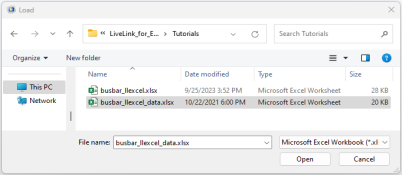
In the Load from File dialog, select the Microsoft Excel Workbook (*.xlsx) file type and navigate to the COMSOL installation directory. In the folder applications/LiveLink_for_Excel/Tutorials, select the file busbar_llexcel_data.xlsx and click Open.
 |
|
5
|
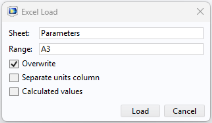
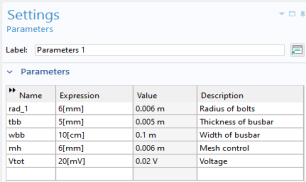
In the Excel Load dialog, specify the sheet and cell range to use for the import. Enter Parameters in the Sheet text field, and enter A3 in the Range text field to import all parameters from the third row. Note that the range should not include the column headers.
 |
|
9
|
In the Load from File dialog, select the Microsoft Excel Workbook (*.xlsx) file type and navigate to the COMSOL installation directory. In the folder applications/LiveLink_for_Excel/Tutorials, select the file busbar_llexcel_data.xlsx and click Open.
|
|
10
|
In the Excel Load dialog, specify the sheet and cell range to use for the import. Enter Parameters in the Sheet text field, and enter A2:C2 in the Range text field to import only the parameter at the second row (L, the length of the busbar).
|
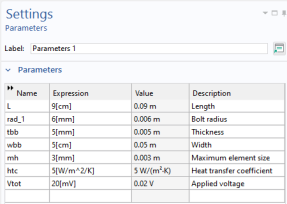
 button to prevent multiple parameters with the same name.
 located below the table.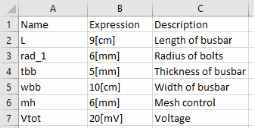
 and select Add>Parameters.
 .
. and go to Geometry 1 node to visualize the geometry with the new parameters value.