Defining Material Export Settings from Constant Data
In this section, you will set up the material export using data stored as constants in the spreadsheet.
Note: The export procedure described in this chapter assumes that the data are stored in the spreadsheet with the material names in a single column and the material property names in a single row. The data are placed at the intersection cell of the material name and the property name.
1
Start Excel and open the file busbar_llexcel_data.xlsx that you can find in your COMSOL Multiphysics installation directory and in the folder applications/LiveLink_for_Excel/Tutorials.
2
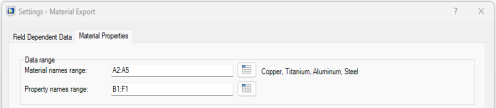
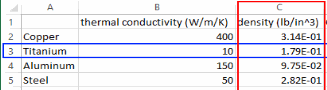
Go to the worksheet Materials which contains the definitions of physical properties for four different materials. The material properties listed are thermal conductivity, density, heat capacity at constant pressure, relative permittivity and electric conductivity. All properties are defined in SI units, except for density, which has the unit lb/in3.

3
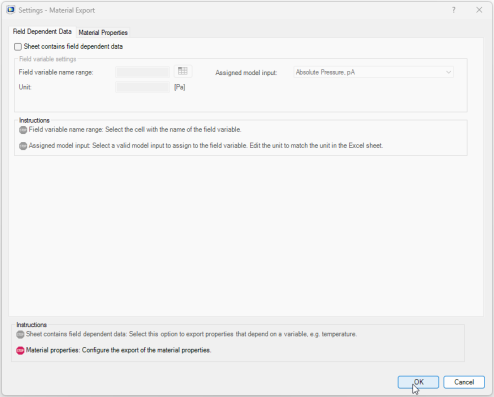
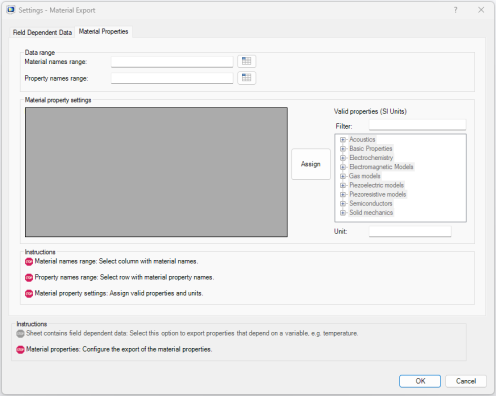
In the Settings dialog you can select materials and properties to export. This is also where you associate each material property from the worksheet with a property recognized by COMSOL.
Export depends on the format of the data stored in the worksheet; you can have material properties defined with constant values or ones that depend on field data, such as temperature. In the worksheet Materials, you can see that the properties are defined as constant.
4
5
6
7
8
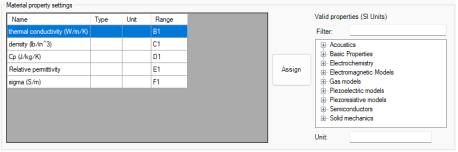
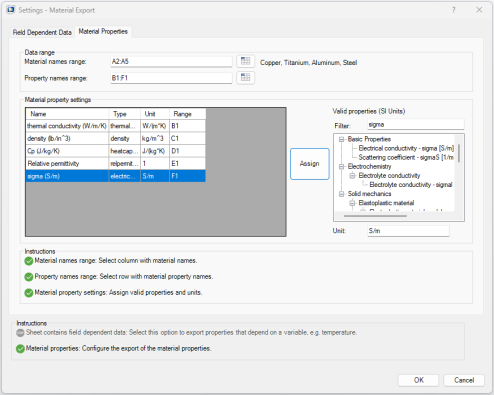
The properties are now listed in the table in the Material property settings section. You now need to assign valid COMSOL properties to the material properties in the spreadsheet.
9
10
Note that the number of properties remaining to be assigned is displayed in the Instructions section.
11
12
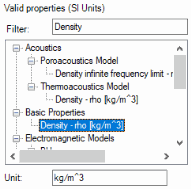
Under Valid properties (SI Units) in the Filter field enter Density to search for all available properties density type, and select Density - rho [kg/m^3].
As density data in the worksheet are not defined in SI unit (kg/m^3), you need to specify the material properties unit.
13
14
15
Once there are no unassigned properties remaining, a check mark appears next to the last step in the Instructions section.
16
Note that comments now appear on the cells containing the material names and properties.
These comments contain the configuration for the material data export that you have just set up. Make sure not to remove them before completing the export. To modify the settings you can return to the Settings dialog.
You can also use these settings as a template to run the export in a batch.