Automating Using Visual Basic for Applications (VBA)
Using VBA macros in Excel workbooks you can automate operations between the workbook and a COMSOL model. For instance, it is possible to create a macro that automatically updates the list of parameters for a parametric sweep in a model, computes the solution, and inserts results into a sheet.
Follow the short example below that illustrates some of the possibilities for using VBA when working with a COMSOL model. Running the code in the example requires that LiveLink™ for Excel® is installed, and that a reference to the COMSOL API component has been added to the VBA project in the workbook. For information on how to do this see Before You Start in the LiveLink™ for Excel® User’s Guide.
To load or create a COMSOL model in a VBA macro it is necessary to use the class ModelUtil, which is one of the three classes available with the COMSOL API for VBA. In addition to ModelUtil, the class ComsolUtil provides additional utility functions, for example for starting a COMSOL Multiphysics server. Lastly, the class RibbonUtil contains the wrapper functions corresponding to the buttons of the COMSOL tab.
The example below loads the busbar model from the Application Libraries, creates a plot, and extracts numerical data into a worksheet. Follow the steps with detailed explanations, and type in the commands, or jump ahead and copy the entire subroutine from Code for use with VBA, then paste it into the VBA editor.
1
2
3
Sub Example()
4
Set ComsolUtil = CreateObject("comsolcom.comsolutil")
Set ModelUtil = CreateObject("comsolcom.modelutil")
Set RibbonUtil = ComsolUtil.GetRibbonUtil
5
Open the model file busbar.mph from the COMSOL Multiphysics Application Libraries
Range("A1").Select
Set model = RibbonUtil.OpenModel("busbar.mph")
You do not need to include the file path as long as you are opening a model from the COMSOL Application Libraries, or the model is saved at the same location as the current workbook. Once the model is loaded, a message is displayed in the COMSOL Multiphysics server window.
6
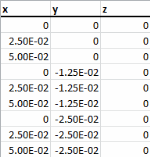
Range("A3").Value = "X"
Range("B3").Value = "Y"
Range("C3").Value = "Z"
Range("A4:C12").Value = 0
Range("A5").Value = 2.5e-2
Range("A6").Value = 5e-2
Range("B7").Value = -1.25e-2
Range("B10").Value = -2.5e-2
Range("A7:A9").Value = Range("A4:A6").Value
Range("A10:A12").Value = Range("A4:A6").Value
Range("B8:B9").Value = Range("B7").Value
Range("B11:B12").Value = Range("B10").Value
7
Range("D3").Select
RibbonUtil.ResultsInterpolation "dset1", "T", "A4:C12", True
The above code creates a link between Excel and the COMSOL model, which defines an interpolation evaluation at the coordinates provided in the cell range A4:C12. You can reuse this link later on to update the evaluation after you have computed a new solution.
8
End Sub
9
To run the subroutine click the Run Sub/User Form button or press F5
Once you have run the subroutine the ribbon is connected to the COMSOL Multiphysics server. You do not need to open the model again.
Code for use with VBA
Below you find the full script of the example. You can copy it and paste it into the VBA editor. In the code below, replace <COMSOLPATH> with your local COMSOL Multiphysics installation directory.
Sub Example()
 
Set ComsolUtil = CreateObject("comsolcom.comsolutil")
Set ModelUtil = CreateObject("comsolcom.modelutil")
Set RibbonUtil = ComsolUtil.GetRibbonUtil
 
Range("A1").Select
Set Model = RibbonUtil.OpenModel("busbar.mph")
 
Range("A3").Value = "X"
Range("B3").Value = "Y"
Range("C3").Value = "Z"
Range("A4:C12").Value = 0
Range("A5").Value = 2.5e-2
Range("A6").Value = 5e-2
Range("B7").Value = -1.25e-2
Range("B10").Value = -2.5e-2
Range("A7:A9").Value = Range("A4:A6").Value
Range("A10:A12").Value = Range("A4:A6").Value
Range("B8:B9").Value = Range("B7").Value
Range("B11:B12").Value = Range("B10").Value
 
Range("D3").Select
RibbonUtil.ResultsInterpolation "dset1", "T", "A4:C12", True
End Sub
For more information about the COMSOL API for VBA refer to the LiveLink for Excel User’s Guide Manual. More examples are included in the file busbar_llexcel.xlsm that you can find in your COMSOL Multiphysics installation directory and in the folder applications/LiveLink_for_Excel/Tutorials