|
2
|
|
5
|
|
7
|
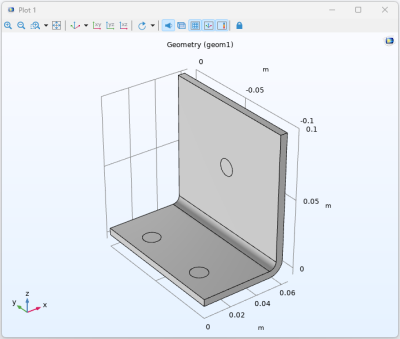
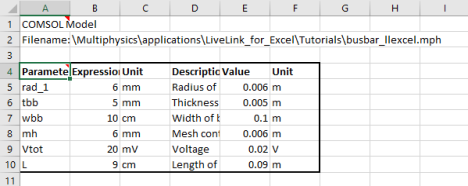
You will now set the value of parameter L back to 9 cm, in cell B6 enter 9 and press Enter. The graphics is not automatically updated so to display the newly generated geometry, select again the Geometry
 > Geometry 1. > Geometry 1. |
 .
.
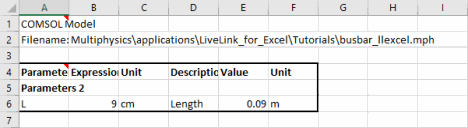
 to update the Parameters node linked to the selected cell by the comment. You can update several model definitions, such as parameters, variables, and functions, contained in the same worksheet with the Update All button
  located under Update. When several Parameter table are available in the worksheet, click Update Multiple
  , located under Update, to select which parameter to update with the other model definitions.
 and select Geometry 1.