Opening a Model
1
2
After this you can load a COMSOL model.
3
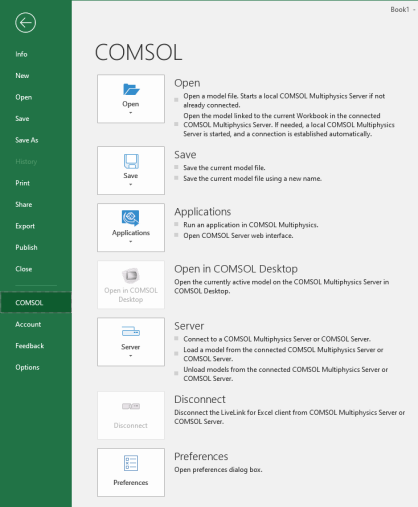
Note: In the COMSOL backstage view you can manage the COMSOL Multiphysics model, launch COMSOL Apps, connect manually to a server and set the preferences.
4
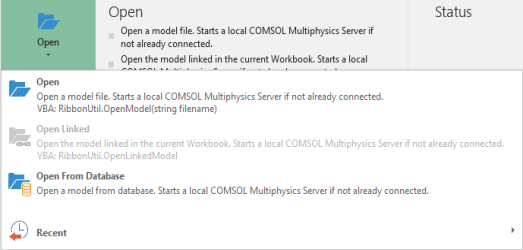
There you can choose to open a new model file (), open the model linked in the current workbook, if available (), open a model from a Model Manager database (), and open a recent file ().
5
6
In your COMSOL installation directory, find the folder applications/LiveLink_for_Excel/Tutorials.
7
Select the file busbar_llexcel.mph and click the Open button.
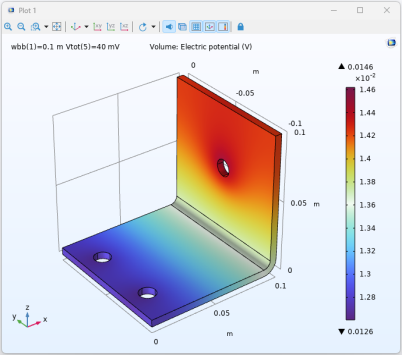
The model file is loaded onto a COMSOL Multiphysics server, which is automatically started. A graphics window automatically displays the first plot group available in the model.
Note: In case no solution is computed, the graphics window shows the model geometry instead.
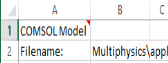
In the worksheet, the model path is automatically entered in cell B2.
The cell A1 contains a comment represented by a red triangle at the upper-right corner of the cell. This comment links the workbook to the model file even if you save and reopen the workbook. How to open a linked model is described in the last section of this tutorial, Opening a Worksheet Linked to a Model. Do not remove this comment unless you want to break the link between the files.
Note: A workbook can be linked to only one COMSOL model at a time.