|
2
|
In the PTC Creo Parametric Model Tree right-click the Revolve 1 feature, and select COMSOL Parameter Selection.
 |
|
1
|
Switch to PTC Creo Parametric.
|
|
2
|
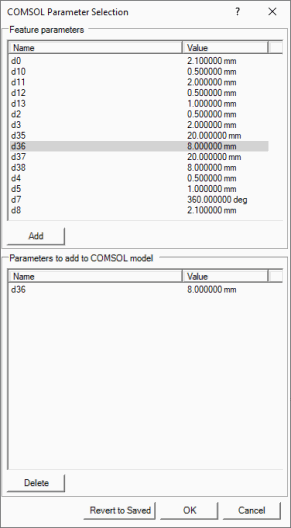
In the PTC Creo Parametric Model Tree right-click the Revolve 1 feature, and select COMSOL Parameter Selection.
|
|
3
|
In the upper table click the parameter d5, then click the Add button to add it to the list of parameters linked to COMSOL.
|
|
6
|
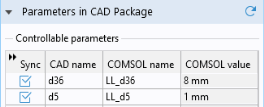
In the Settings window for LiveLink for PTC Creo Parametric click the Update Parameters from CAD
 button. button. |