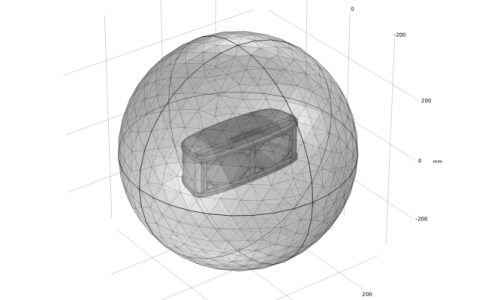
Geometry Cleanup and Meshing
When leaving the geometry branch of the model tree, the geometry is automatically analyzed for small details.
1
In the Model Builder window, under Component 1 click Mesh 1.
2
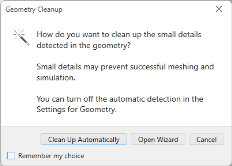
In the Geometry Cleanup dialog that opens, click Clean Up Automatically to detect and remove small details from the geometry before meshing.
As the cleanup is completed the Cleanup Log appears indicating that all detected issues were resolved. According to the information in the Settings window, a Remove Details feature was added and 47 vertices and 45 edges were deleted in the process.
3
In the Model Builder window, under Component 1 (comp1) click Mesh 1.
4
In the Settings window for Mesh, click
Build All.
 Build All.