Modifying the AutoCAD Geometry from COMSOL
1
Now switch back to COMSOL to transfer the parameter you have just selected.
2
In the Settings window for LiveLink for AutoCAD, click the Update Parameters from CAD
button.
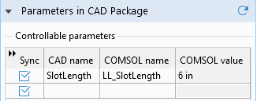
The table is updated with the selected parameter. Parameters are always retrieved to the CAD name column, while the corresponding automatically generated global parameters in the COMSOL model appear in the COMSOL name column.
Global parameters in a COMSOL model allow you to parameterize settings and can be controlled by the parametric solver to perform parametric sweeps. Thus, by linking AutoCAD parameters to COMSOL global parameters the parametric solver can automatically update and synchronize the geometry for each new value in a sweep. Here you can manually change the parameter value then synchronize.
3
In the Model Builder tree, expand Global Definitions
, then click the Parameters
node.
4
In the Settings window for Parameters change the value for the parameter
LL_SlotLength
. Enter
6[in]
in the Expression column.
5
Under the Geometry 1
node, click LiveLink for AutoCAD 1 (cad1)
.
Note that the new parameter value is displayed in the table.
6
Click the Synchronize button
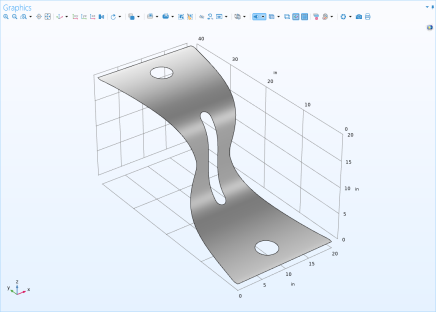
By this action the center slot shortens according to the value of the global parameter and the updated geometry appears in the Graphics window after a few moments.
For an example model, complete with step-by-step instructions, and including a parametric sweep you can take a look at the model
Electrical Heating in a Busbar
, which is located in the Application Libraries window, under LiveLink for AutoCAD>Tutorials, LiveLink Interface.
 button.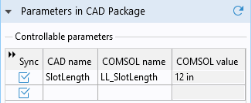
 , then click the Parameters
  node.
node.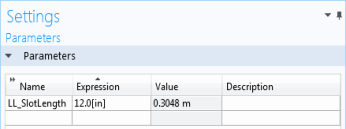
 node, click LiveLink for AutoCAD 1 (cad1)
  .
.