|
1
|
|
3
|
In the Radius text field, type r_outer.
|
|
3
|
In the Width text field, type r_outer + w_contact.
|
|
4
|
In the Height text field, type l_heatsource.
|
|
5
|
Locate the Position section. In the z text field, type length/2-l_heatsource.
|
|
3
|
In the Width text field, type r_outer.
|
|
4
|
Locate the Position section. In the z text field, type length/2-l_heatsource*2.
|
|
2
|
Locate the Size and Shape section. In the Height text field, type length/2-l_heatsource*2
|
|
3
|
In the Settings window for Explicit Selection, type Vapor Cavity in the Label text field.
|
|
3
|
In the Settings window for Explicit Selection, type Porous Copper Wick in the Label text field.
|
|
3
|
In the Settings window for Explicit Selection, type Solid Copper Tube Casing in the Label text field.
|
|
2
|
In the Settings window for Explicit Selection, type Heat Sink in the Label text field.
|
|
5
|
In the Label text field, type Heat Source.
|
|
2
|
In the Settings window for Explicit Selection, type Cross Section of Cavity in the Label text field.
|
|
2
|
In the Settings window for Explicit Selection, type Cross Section of Wick in the Label text field.
|
|
2
|
In the Settings window for Explicit Selection, type Cross Section of Casing in the Label text field.
|
|
2
|
In the Settings window for Explicit Selection, type Inner Wick Boundary in the Label text field.
|
|
2
|
In the Settings window for Explicit Selection, type All Wick Boundaries in the Label text field.
|
|
2
|
In the Settings window for Union Selection, type All Cross Sections in the Label text field.
|
 Circle.
 Rectangle.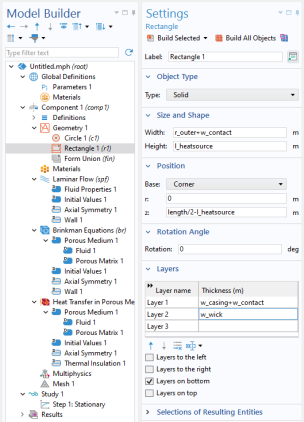
 Transforms and choose
  Mirror.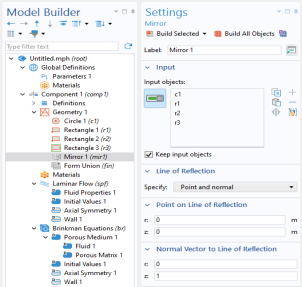
 Build All Objects.
 Zoom Extents.
 Virtual Operations and choose Mesh Control Edges.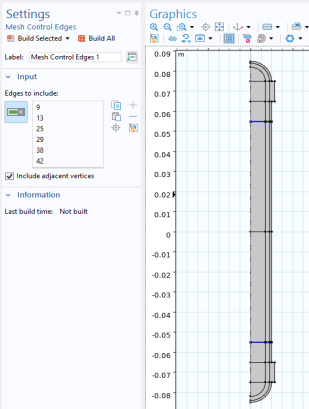
 Virtual Operations and choose Ignore Edges.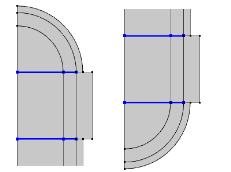
 Virtual Operations and choose Ignore Edges.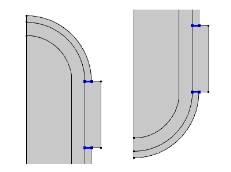
 Virtual Operations and choose Ignore Vertices.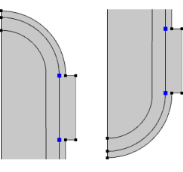
 Build All.
 Selections and choose Explicit Selection.
 Selections and choose Explicit Selection.
 Selections and choose Explicit Selection.
 Selections and choose Explicit Selection.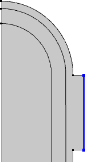
 Selections and choose Explicit Selection.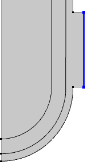
 Selections and choose Explicit Selection.
 Selections and choose Explicit Selection.
 Selections and choose Explicit Selection.
 Selections and choose Explicit Selection.
 Selections and choose Explicit Selection.
 Selections and choose Union Selection.
 Add. Choose (holding the Ctrl key allows you to make multiple choices):