Model Wizard
Note:
These instructions are for the user interface on Windows but apply, with minor differences, also to Linux and macOS.
1
To start the software, double-click the COMSOL icon on the desktop. When the software opens, choose to use the Model Wizard to create a new COMSOL Multiphysics model, or choose Blank Model to create one manually. For this tutorial, click the Model Wizard button.
If COMSOL Multiphysics is already open, you can start the Model Wizard by choosing
New from the File menu and then click
Model Wizard.
The Model Wizard guides you through the first steps of setting up a model. The next window lets you choose the dimension of the modeling space.
2
In the Model Wizard window, click
2D Axisymmetric.
3
In the Select Physics tree, select Fluid Flow > Single-Phase Flow > Laminar Flow (spf).
4
Click Add.
5
In the Select Physics tree, select Fluid Flow > Porous Media and Subsurface Flow > Brinkman Equations (br).
6
Click Add.
7
In the Select Physics tree, select Heat Transfer > Porous Media > Heat Transfer in Porous Media (ht).
8
Click Add.
9
Click
Study.
10
In the Select Study tree, select General Studies > Stationary.
11
Click
Done.
 New from the File menu and then click
  Model Wizard.
 2D Axisymmetric.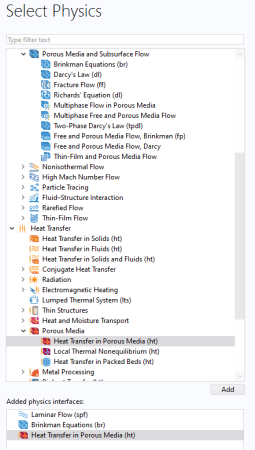
 Study.
 Done.
Done.