Laminar Flow
In the Home toolbar, click the Add Physics button
.
Add Physics
1
In the Add Physics window select Fluid Flow > Single-Phase Flow > Laminar Flow (spf).
2
Click Add to Component 1
.
3
Click Add Physics button
again to close the Add Physics panel.
Laminar Flow (spf)
1
In the Model Builder window, under Component 1 (comp1) click Laminar Flow (spf)
.
Specify that the flow interface is active only in the air channel.
2
In the Settings window for Laminar Flow, locate the Domain Selection section.
3
From the Selection list, choose Air.
Inlet 1
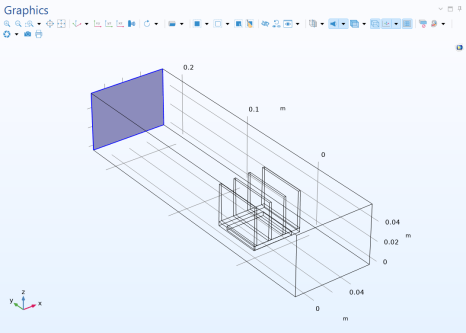
1
In the Physics toolbar click Boundaries
and choose Inlet
.
2
Select Boundary 2, then click Create Selection
.
3
In the
Create
Selection
dialog, type
Inlet
in the
Selection
name
text field. Click OK.
4
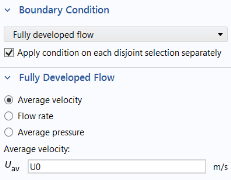
In the Settings window for Inlet, locate the Boundary Condition section.
5
Select Fully developed flow.
6
In the Fully Developed Flow section, in the
U
av
text field, type
U0
.
Outlet 1
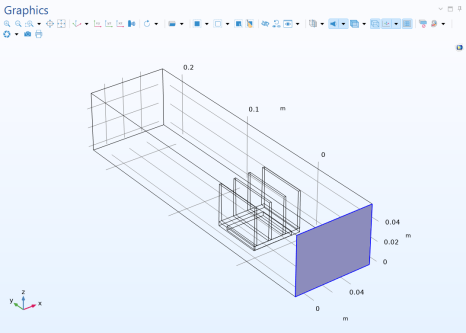
1
In the Physics toolbar click Boundaries
and choose Outlet
.
2
Select Boundary 5, then click Create Selection
.
3
In the
Create
Selection
dialog, type
Outlet
in the
Selection
name
text field. Click OK.
 .
. .
. again to close the Add Physics panel.
 .
. and choose Inlet
  .
. .
.
 and choose Outlet
  .
. .
.