Create the Mesh
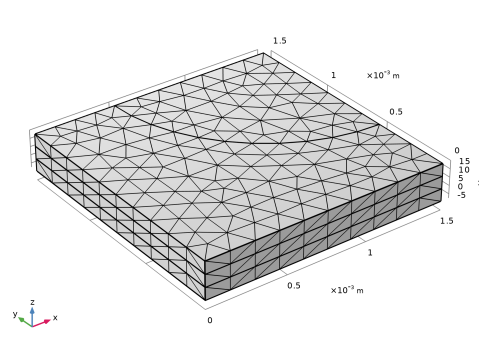
The default mesh that will be used automatically is fairly coarse, featuring only one or two mesh elements in the z direction. To improve accuracy of the results, the mesh needs to be refined. For this geometry a swept mesh can be used to get accurate control of the number of elements in the
z
direction. Inspect the default mesh before refining it.
1
In the Model Builder window, under Component 1 (comp1) right-click Mesh 1 and choose Build All.
Modify the General Size Setting
1
In the Settings window for Mesh, locate the Physics-Controlled Mesh section.
2
From the Element size list, choose Fine.
Add a Swept Mesh
1
In the Mesh toolbar, and choose Swept.
2
In the Settings window for Swept, click to expand the Source Faces section.
3
Select Boundaries 10 and 14 only.
Add a Distribution for the Cathode
1
Right-click Swept 1 and choose Distribution.
2
In the Settings window for Distribution, locate the Domain Selection section.
3
From the Selection list, choose Cathode Gas Diffusion Electrode.
4
Locate the Distribution section. From the Distribution type list, choose Predefined.
We will create a mesh with thinner elements in the cathode gas diffusion electrode domain toward the boundary facing the membrane domain.
5
In the Element ratio text field, type
5
.
6
Select the Reverse direction checkbox.
7
Click
Build All.
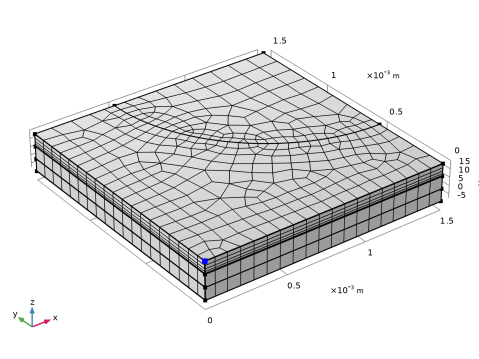
The mesh should now look as follows:
Swept 1
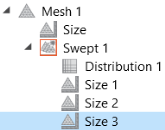
To improve the resolution along the current collector-inlet hole edge, and the interior of the electrode, also add some Size nodes.
Size 1
1
Right-click Swept 1 and choose Size.
2
In the Settings window for Size, locate the Geometric Entity Selection section.
3
From the Geometric entity level list, choose Edge.
4
Select Edge 19 only.
5
Locate the Element Size section. From the Predefined list, choose Extra fine.
Size 2
1
Right-click Swept 1 and choose Size.
2
In the Settings window for Size, locate the Geometric Entity Selection section.
3
From the Geometric entity level list, choose Edge.
4
Select Edges 10 and 11 only.
5
Locate the Element Size section. From the Predefined list, choose Finer.
Size 3
1
Right-click Swept 1 and choose Size.
2
In the Settings window for Size, locate the Geometric Entity Selection section.
3
From the Geometric entity level list, choose Point.
4
Select Point 4 only.
5
Locate the Element Size section. From the Predefined list, choose Extra fine.
6
Click
Build All.
 Build All.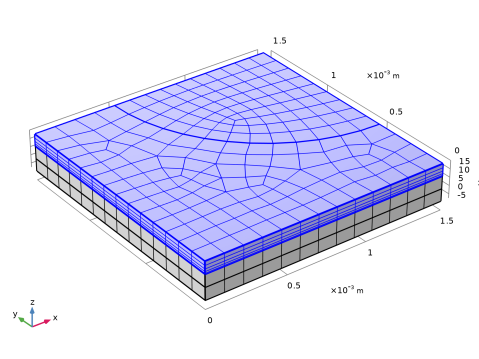
 Build All.