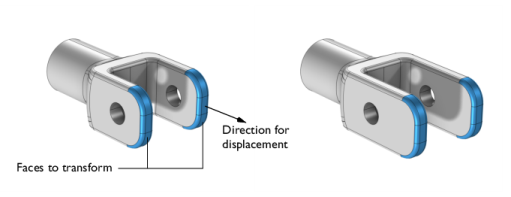
 ) menu, select Transform Faces(
 ). You can also right-click the Geometry node and add this node from the context menu.
 and OFF
  the Faces to offset selections.
|
•
|
For Axis of rotation, select an Axis type: x-axis, y-axis, z-axis (the default), Cartesian, or Spherical. For any choice, enter an Angle (SI unit: degrees; default 0) to specify the rotation. If Cartesian is selected, enter Cartesian coordinates values for x, y, and z (default values 0, 0, and 1, respectively, corresponding to the global z-axis) to specify the axis vector. If Spherical is selected, specify the axis vector using spherical angles theta and phi in degrees (default: 90 and 0, respectively).
|
|
•
|
For Euler angles (Z-X-Z), enter values for the intrinsic Z-X-Z Euler angles α, β, and γ in the corresponding text fields (in degrees; the default values are 0).
|
|
•
|
For Edge, choose a straight edge as the axis of rotation and add it to the Straight edge list. Then enter an Angle (SI unit: degrees; default 0) to specify the rotation angle.
|
|
•
|
Select Yes to create step faces for all bounding edges of the transformed faces.
|
|
•
|
Select Where faces meet with continuous tangent (default) to create step faces at all bounding edges where the selected faces meet the adjacent faces with tangent continuity.
|
|
•
|
Select No to not create step faces.
|
|
•
|
Automatic (default). The operation determines how to cover the wound caused by the overflow.
|
|
•
|
Extend transformed faces. With this option the transformed faces are extended to cover the wound caused by the overflow.
|
|
•
|
Extend other faces. With this option the faces that are not transformed are extended to cover the wound caused by the overflow.
|
|
•
|
Cap faces. The wound caused by the overflow is covered by creating new faces based on the edges surrounding the wound.
|
|
•
|
Disallow. This option will return an error message if overflow happens.
|