|
5
|
|
7
|
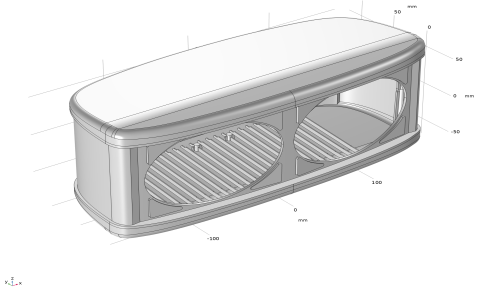
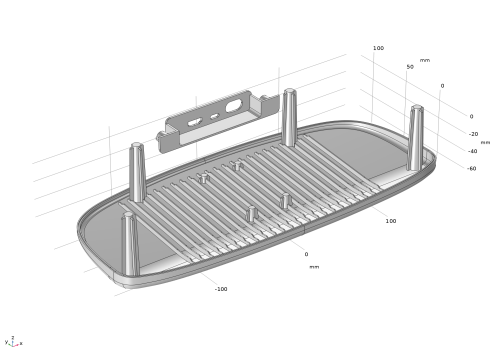
In the Graphics window select the objects for the enclosure mid and top sections (dho1(2) and dho1(3)) to hide them from view.
 |
|
8
|
 Select Objects button in the Graphics toolbar.
 Click and Hide button in the Graphics toolbar.
 Click and Hide button in the Graphics toolbar to turn off the click and hide mode.
 Zoom Box button in the Graphics toolbar and zoom in to the holes in the back.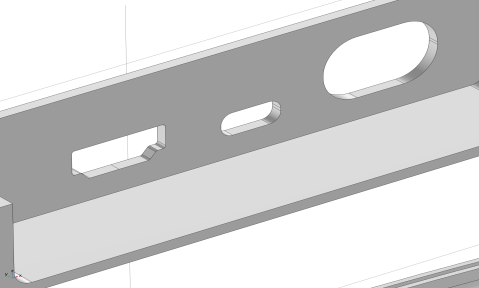
 Replace Faces.
 Select Box button in the Graphics toolbar.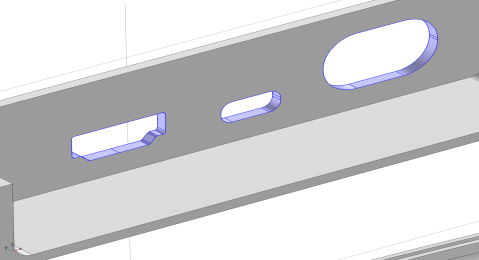
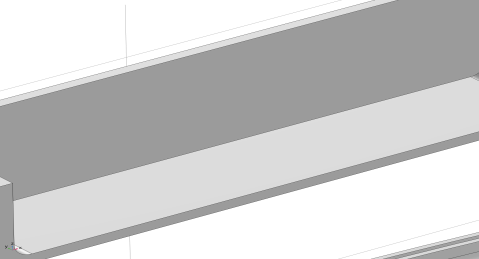
 Zoom Extents button in the Graphics toolbar.
 Go to XY View button in the Graphics toolbar.
 Zoom Box button in the Graphics toolbar and zoom in to the two mounting details in the front.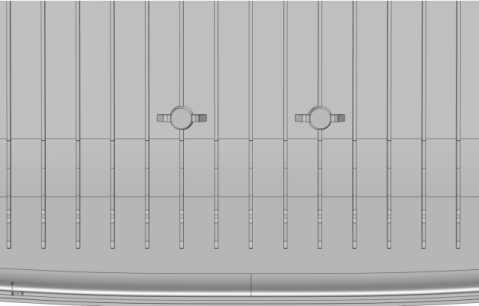
 Select Box button in the Graphics toolbar.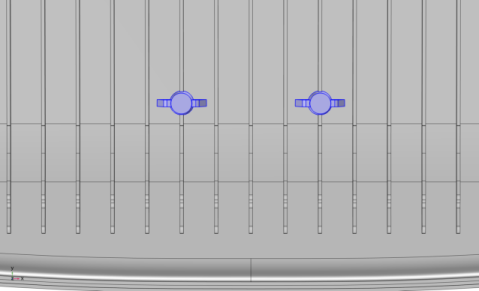
 Go to Default View button in the Graphics toolbar.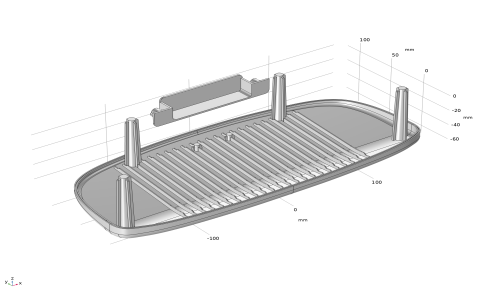
 Reset Hiding button in the Graphics toolbar, and in the Confirm Delete dialog that opens click Delete all hide for geometry nodes.