|
1
|
|
14
|
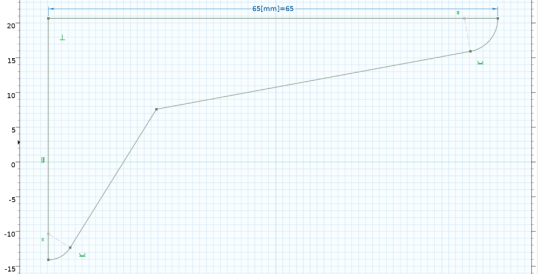
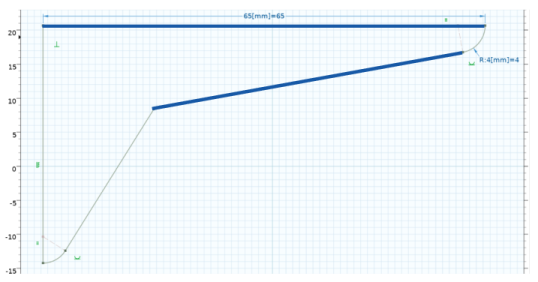
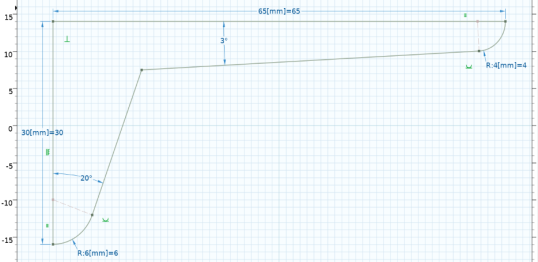
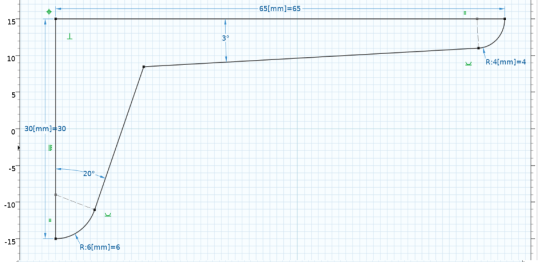
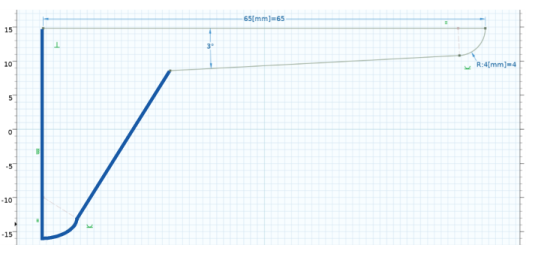
Repeat Steps 2–13 to add a distance, a radius, and an angle dimension for the edges on the left side of the bracket, highlighted in the following figure. Use the following dimension values: 30[mm] for the Distance dimension applied to the vertical edge, 6[mm] for the arc radius, and 20[deg] for the angle.
 |
|
18
|
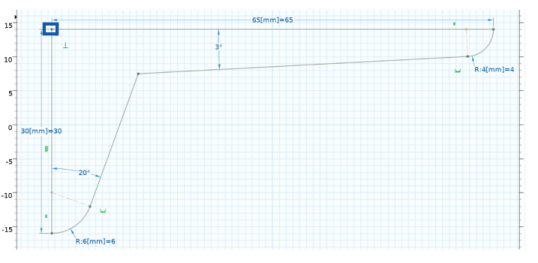
In the settings for Position, x and y coordinates text fields enter -35[mm] and 15[mm], respectively.
|
 ) to enter the smart dimension mode.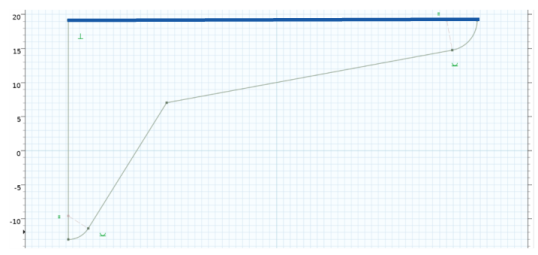
 ), or press F7, to build the geometry using the new value.