Enabling Sketch Mode and Constraints and Dimensions
1
From the ribbon, select the Sketch tab.
2
Sketch mode should be enabled by default, if not select the Sketch (
) button.
In sketch mode, you can draw the geometry directly in the Graphics window using the interactive drawing tools from the Sketch tab. Snapping to the grid and to the geometry while drawing are enabled by default. The Solid button determines the default output type of the shapes you draw. When the button is selected, solid objects are created; otherwise, curve objects are created. You can also change the object type in the settings for the created features. In sketch mode only the edges and the vertices of the geometry are visualized, the domains become visible after you exit sketch mode.
The constraint and dimension functionality will be activated automatically as soon as you add a constraint or dimension feature to your drawing. Here, enable it manually in order to review related settings.
3
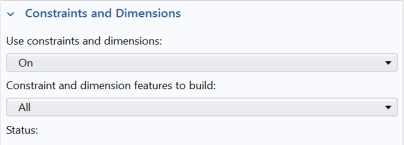
From the Model Builder select Geometry 1. In the settings for Geometry, under Use constraints and dimensions, select On.
The setting Constraint and dimension features to build is initially set to All, meaning that such features in the geometry sequence are always active regardless of the currently built node. You can change this if you only want the constraints and dimensions up to a specific build target in the sequence to be active. This may be useful to debug a geometry sequence for example.
When building a geometry there may be several solutions for the geometry shape given the applied constraints and dimensions. It is only when the applied constraints and dimensions uniquely define the drawing that predictable changes can be obtained by modifying dimension values. Thus, as you work on the drawing and apply new constraint or dimension features to the geometry, the returned shape may not always correspond to the desired one. To avoid this effect, it is recommended to add constraints before adding dimensions. Constraint features define the relations between the geometric entities, thereby reducing the number of possible solutions when you start adding dimensions.
If you are unhappy with the provided solution after adding a constraint or dimension, use undo; then use the mouse to drag the edges and vertices closer to the desired shape. It can also help if the initial sketch is not too different in size from the final object.

 ) button.