|
2
|
On the New page click Model Wizard (
 ) then click the 2D Axisymmetric button ( ) then click the 2D Axisymmetric button ( ) on the Select Space Dimension page. ) on the Select Space Dimension page. |
|
2
|
On the New page click Model Wizard (
) then click the 2D Axisymmetric button () on the Select Space Dimension page. |
|
3
|
On the Select Physics page under Mathematics > Quantum Mechanics click Schrodinger Equation (scheq) (
 ). ). |
|
4
|
|
5
|
|
1
|
|
2
|
Add a Circle (
 ). In the Settings window under Size and Shape, in the Radius field enter 3e-9 (3 nm). In the Sector angle field enter 180. ). In the Settings window under Size and Shape, in the Radius field enter 3e-9 (3 nm). In the Sector angle field enter 180. |
|
3
|
Under Position from the Base list select Center. In the r field enter 0 and in the z field enter 0, which centers the circle at the origin (these are the default settings).
|
|
4
|
Under Rotation Angle, in the Rotation field, enter -90 degrees to create a semicircle in the right half-plane.
|
|
5
|
Click Geometry 1, and add a Circle (
 ). In the Settings window under Size and Shape, in the Radius field enter 0.5e-9 (0.5 nm). In the Sector angle field enter 180. ). In the Settings window under Size and Shape, in the Radius field enter 0.5e-9 (0.5 nm). In the Sector angle field enter 180. |
|
6
|
Under Position from the Base list select Center. In the r field enter 0 and in the z field enter 0, which centers the circle at the origin (these are the default settings).
|
|
7
|
Under Rotation Angle, in the Rotation field, enter -90 degrees to create a semicircle in the right half-plane.
|
|
8
|
|
1
|
Click the Schrodinger Equation Model node. In the Settings window the default in the Reduced mass field is the electron mass, me.
|
|
2
|
In the Potential energy field enter the following expression:
|
|
3
|
Verify that the default boundary conditions are correct. Click the Axial Symmetry node and confirm it applies to the symmetry boundaries at r = 0. Click the Zero Probability node to confirm it applies to the exterior boundaries of the geometry.
|
|
1
|
Right-click the Mesh node (
 ) and select Size ( ) and select Size ( ) to add a second Size node to define the mesh size in the inner circular domain (Domain 2). ) to add a second Size node to define the mesh size in the inner circular domain (Domain 2). |
|
2
|
|
3
|
|
4
|
|
5
|
In the Element Size Parameters section, select the Maximum element size checkbox and enter 0.05e-9 in the corresponding field to use a mesh size no larger than 0.05 nm in domain 2.
|
|
6
|
Right-click the Mesh node (
 ) and select Free Triangular ( ) and select Free Triangular ( ) to add a node that meshes domain 2 using the specified mesh size. ) to add a node that meshes domain 2 using the specified mesh size. |
|
7
|
Click the top Size node. In its Settings window click to expand the Element Size Parameters section.
|
|
8
|
In the Maximum element growth rate field replace the default with 1.1 to make the mesh size grow more slowly toward the perimeter of the geometry.
|
|
9
|
|
1
|
|
2
|
|
-
|
|
-
|
|
3
|
 ) and select Schrodinger Equation > Wave function (psi) to plot the variable psi, which is the complex-valued wave function for the electron position.
 ).
). ). Click
  ).
). ).
).  ) to create the mesh.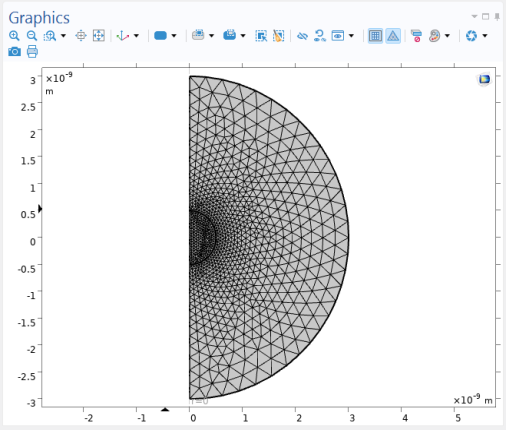
 ).
). ) to start the eigenvalue solver.