|
3
|
From the File menu, choose New (
 ). On the New page, click the Physics Builder button ( ). On the New page, click the Physics Builder button ( ). The Physics Builder window replaces the Model Builder window on the COMSOL Desktop. ). The Physics Builder window replaces the Model Builder window on the COMSOL Desktop. |
|
2
|
From the File menu (Windows) or the Options menu (the cross-platform version), choose Preferences. In the Preferences window box, click Physics Builder and then select the Enable Physics Builder checkbox if not selected already.
|
|
3
|
From the File menu, choose New (
). On the New page, click the Physics Builder button (). The Physics Builder window replaces the Model Builder window on the COMSOL Desktop. |
|
4
|
In the Home toolbar, click Add Physics Interface (
 ) (or right-click the root node (Untitled.mphphb) and select Physics Interface). ) (or right-click the root node (Untitled.mphphb) and select Physics Interface). |
|
5
|
|
-
|
In the Description field enter Schrodinger Equation. Click the Rename Node Using This Text button (
 ) to update the node in the Physics Builder. ) to update the node in the Physics Builder. |
|
-
|
|
-
|
|
-
|
If you have a custom Icon for the interface, click the Browse button to locate the icon file. The default is to use the physics.png icon (
 ). ). |
|
6
|
The Schrodinger Equation interface should support all space dimensions except 0D. Under Restrictions keep the defaults for the Allowed space dimensions, which already excludes 0D.
|
|
7
|
In the Allowed study types list, select the default study types (Stationary and Time dependent) and click the Delete button (
 ) underneath the list. Click the Add button ( ) underneath the list. Click the Add button ( ) and select Eigenvalue from the Allowed study types list. Click OK. ) and select Eigenvalue from the Allowed study types list. Click OK. |
|
8
|
In the Settings section, confirm that Domain is selected from the Top geometric entity level list. This means that the equations in the physics interface apply to the domains in the geometry, which is the case for most physics. Leave the default setting for the Default frame list as Material.
|
|
9
|
It is good practice to save the physics use interface after completing some steps. From the File menu, choose Save and create a physics interface file, SchrodingerEquation.mphphb in the default location. Click Save.
|
|
1
|
Right-click the Schrodinger Equation node and from the Variables menu select Dependent Variable Declaration (
 ). Or, in the Physics Interface toolbar, click the button with the same name. ). Or, in the Physics Interface toolbar, click the button with the same name. |
|
2
|
|
-
|
|
-
|
Click the Select Quantity button (
 ) to open the Physical Quantity dialog, and then select Dimensionless (1). Click OK. ) to open the Physical Quantity dialog, and then select Dimensionless (1). Click OK. |
|
-
|
|
-
|
|
-
|
|
-
|
|
3
|
In the Preferences section, both checkboxes are selected by default. Keep these settings.
|
|
1
|
|
2
|
|
-
|
In the Description field enter Schrodinger equation model. Click the Rename Node Using This Text button (
 ) to update the node in the Physics Builder. ) to update the node in the Physics Builder. |
|
-
|
|
-
|
|
3
|
In the Restrictions section, keep the default setting (Same as parent) for the Allowed space dimensions and Allow study types lists. By selecting Customized you can restrict the feature to a subset of the allowed space dimensions or study types for the physics.
|
|
4
|
In the Selection Settings section, confirm that Active is displayed in the Applicable entities list. Keep the Override rule default setting (Built in), and the Override rule default (Exclusive).
|
|
5
|
Under Coordinate Systems, keep the default settings (Frame system) for the Input base vector system and Base vector system lists. Also keep the default Frame type as Material.
|
|
6
|
Under Preferences click to select the Add as default feature checkbox to make this the default feature for all domains.
|
|
7
|
|
8
|
|
-
|
|
-
|
|
-
|
|
-
|
If desired, here and elsewhere, add a tooltip in the Tooltip field.
|
|
-
|
Click the Select Quantity button (
 ) to open the Physical Quantity dialog, and then select Mass (kg). Click OK. ) to open the Physical Quantity dialog, and then select Mass (kg). Click OK. |
|
-
|
Keep the default settings in the Array type (Single) and Dimension (Scalar) lists for a basic scalar quantity. Also leave the Allowed values setting to Any for an entry of a general scalar number.
|
|
-
|
In the Default value field enter me_const (the electron mass, which is a built-in physical constant) in the Default value field.
|
|
9
|
|
10
|
|
11
|
|
-
|
|
-
|
|
-
|
|
-
|
Click the Select Quantity button (
 ) to open the Physical Quantity dialog, and then select Energy (J). Click OK. ) to open the Physical Quantity dialog, and then select Energy (J). Click OK. |
|
-
|
Keep the default settings in the Array type (Single) and Dimension (Scalar) lists for a basic scalar quantity. Also leave the Allowed values setting to Any for an entry of a general scalar number.
|
|
-
|
|
12
|
|
13
|
Right-click the Schrodinger Equation Model node and from the Equations menu select Weak Form Equation (
 ). This is where you specify the equation for the domains in the physics interface. ). This is where you specify the equation for the domains in the physics interface. |
|
14
|
In the Settings window locate the Integrand section. In the Expression field, enter -hbar_const^2/(2*mu)*∇psi·test(∇psi)-(V-lambda)*psi·test(psi)
|
|
15
|
In the Selection section keep the default Selection setting (From parent), which means it inherits the selection from the top node. Also keep the default Output entities setting (Selected entities) to use the selected domains as the output. Keep all other defaults.
|
|
16
|
Right-click the Schrodinger Equation Model node and from the Variables menu select Dependent Variable Definition (
 ). ). |
|
17
|
In the Settings window, locate the Definition section. From the Physical quantity list, choose From built-in quantities. Click the Select Quantity button (
 ) to open the Physical Quantity dialog, and then select Dimensionless (1). Click OK. Lagrange elements are the most widely used and are suitable for this physics interface. The default shape-function order becomes 2. Keep the other defaults. ) to open the Physical Quantity dialog, and then select Dimensionless (1). Click OK. Lagrange elements are the most widely used and are suitable for this physics interface. The default shape-function order becomes 2. Keep the other defaults. |
|
1
|
Right-click the Schrodinger Equation (Physics Interface 1) node and from the Features menu select Boundary Condition (
 ). ). |
|
2
|
|
-
|
In the Description field enter Zero probability. Click the Rename Node Using This Text button (
 ) to update the node in the Physics Builder. ) to update the node in the Physics Builder. |
|
-
|
|
-
|
|
3
|
|
4
|
In the Preferences section, select the Add as default feature checkbox. Keep the Default entity types as Exterior to make this a default condition on exterior boundaries only.
|
|
5
|
|
6
|
In the Settings window locate the Declaration section. Enter 0-psi in the Expression field to make Ψ = 0 on the boundary (this expression is set equal to zero by the constraint).
|
|
7
|
In the Shape Declaration section, from the Physical quantity list select From built-in quantities. Click the Select Quantity button (
 ) to open the Physical Quantity dialog, and then select Dimensionless (1) to declare the correct dimension for the constrained variable Ψ. Click OK. Keep all other default settings. ) to open the Physical Quantity dialog, and then select Dimensionless (1) to declare the correct dimension for the constrained variable Ψ. Click OK. Keep all other default settings. |
 |
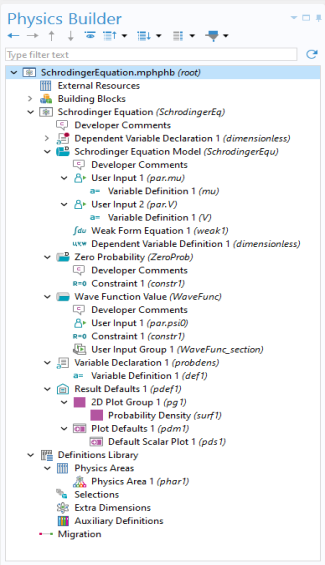
Click the Schrodinger Equation node. In the Settings window under Default Features, note that the Schrodinger Equation Model and the Zero Probability boundary condition are listed.
|
|
1
|
|
2
|
|
-
|
In the Description field enter Wave function value. Click the Rename Node Using This Text button (
 ) to update the node in the Physics Builder. ) to update the node in the Physics Builder. |
|
-
|
|
-
|
|
3
|
|
4
|
|
5
|
|
-
|
|
-
|
|
-
|
|
-
|
Click the Select Quantity button (
 ) to open the Physical Quantity dialog, and then select Dimensionless (1). Click OK. ) to open the Physical Quantity dialog, and then select Dimensionless (1). Click OK. |
|
-
|
Keep the default settings in the Array type (Single) and Dimension (Scalar) lists for a basic scalar quantity. Also leave the Allowed values setting to Any for an entry of a general scalar number.
|
|
-
|
|
6
|
|
7
|
In the Settings window locate the Declaration section. Enter par.psi0-psi in the Expression field to make Ψ = Ψ0 on the boundary. The par prefix indicates a local parameter scope and is necessary in order to refer to a user input that is not defined as a variable.
|
|
8
|
In the Shape Declaration section, from the Physical quantity list select From built-in quantities. Click the Select Quantity button (
 ) to open the Physical Quantity dialog, and then select Dimensionless (1) to declare the correct dimension for the constrained variable Ψ. Click OK. ) to open the Physical Quantity dialog, and then select Dimensionless (1) to declare the correct dimension for the constrained variable Ψ. Click OK. |
|
9
|
|
10
|
In the Settings window locate the Declaration section. In the Group name field enter WaveFunc_section and in the Description field enter Wave function.
|
|
11
|
Under the Group members list, click the Add button (
 ) and from the Group members list select User Input 1 (par.psi0). Click OK. ) and from the Group members list select User Input 1 (par.psi0). Click OK. |
|
12
|
In the GUI Options section, from the GUI Layout list select Group members define a section. See User Input Group GUI Options for more information.
|
|
1
|
Right-click the Schrodinger Equation node and from the Variables menu select Variable Declaration (
 ). ). |
|
2
|
|
-
|
|
-
|
|
-
|
|
-
|
|
-
|
Click the Select Quantity button (
 ) to open the Physical Quantity dialog, and then select Dimensionless (1). Click OK. ) to open the Physical Quantity dialog, and then select Dimensionless (1). Click OK. |
|
3
|
Keep all the default settings in the Preferences section. The Show in plot menu list is set to Always for this variable to always appear as a predefined expression in plots.
|
|
4
|
|
5
|
|
1
|
|
2
|
|
3
|
|
4
|
In the Settings window for Surface in the Description field, select the checkbox and enter Probability density, and then in the Expression field under Expression, enter probdens.
|
|
5
|
Right-click the Surface 1 node and select Rename (or press F2). In the Rename Surface dialog, in the New label field enter Probability Density. Click OK.
|
|
6
|
|
7
|
|
8
|
In the Settings window, in the Expression field enter probdens. In the Description field enter Probability density. This makes the probability density function the default plot for all scalar plots.
|
|
1
|
|
2
|
|
-
|
|
-
|
|
-
|
The default Icon is physics.png (
 ), which is appropriate for this physics. Otherwise, click Browse to use another icon. ), which is appropriate for this physics. Otherwise, click Browse to use another icon. |
|
-
|
In the Weight field enter 10 to make the Quantum Mechanics area appear last in the list under Mathematics (the higher the weight, the lower position the physics area gets in the tree of physics interfaces).
|
|
3
|
Under Parent Area click the Mathematics node. Click the Set as Parent button (
 ). This moves the new physics area under the Mathematics node. ). This moves the new physics area under the Mathematics node. |
|
4
|
|
5
|
Expand the Mathematics branch and click Quantum Mechanics. Click the Set as Parent button (
 ). This places the Schrodinger Equation interface under the Quantum Mechanics physics area. ). This places the Schrodinger Equation interface under the Quantum Mechanics physics area. |
|
6
|
Save the file that contains the physics interface as SchrodingerEquation.mphphb.
|
 ).
). ).
).  ).
). ).
).  ).
). ).
). ).
). ).
). ).
).  ).
).  ).
). ).
). ).
). ) node and select
  ).
). ).
). ).
).  ) and select
  ).
).