|
3
|
From the File menu, choose New (
 ). On the New page, click the Physics Builder button ( ). On the New page, click the Physics Builder button ( ). The Physics Builder window replaces the Model Builder window on the COMSOL Desktop. ). The Physics Builder window replaces the Model Builder window on the COMSOL Desktop. |
|
2
|
From the File menu (Windows) or the Options menu (the cross-platform version), choose Preferences. In the Preferences window, click Physics Builder and then select the Enable Physics Builder checkbox if not selected already.
|
|
3
|
From the File menu, choose New (
). On the New page, click the Physics Builder button (). The Physics Builder window replaces the Model Builder window on the COMSOL Desktop. |
|
4
|
In the Home toolbar, click Add Physics Interface (
 ) (or right-click the root node (Untitled.mphphb) and select Physics Interface). This adds a Physics Interface node. ) (or right-click the root node (Untitled.mphphb) and select Physics Interface). This adds a Physics Interface node. |
|
5
|
|
-
|
In the Description field enter Thermoelectric Effect. Click the Rename Node Using This Text button (
 ) to update the node in the Physics Builder. ) to update the node in the Physics Builder. |
|
-
|
|
-
|
|
-
|
If you have a custom Icon for the interface, click the Browse button to locate the icon file. The default is to use the physics.png icon (
 ). ). |
|
6
|
The Thermoelectric Effect interface should support all space dimensions except 0D, so under Restrictions, leave the Allowed space dimensions list with the default contents, which includes all space dimensions except 0D.
|
|
7
|
Under Restrictions in the Allowed study types list, select the default Time dependent study type and click the Delete button (
 ) underneath the list. For this example only the Stationary study type is used. ) underneath the list. For this example only the Stationary study type is used. |
|
8
|
In the Settings section, verify that Domain is selected in the Top geometric entity level list. This means that the equations in the physics interface apply to the domains in the geometry, which is the case for most physics interfaces. Leave the setting in the Default frame list at the default value (Material).
|
|
9
|
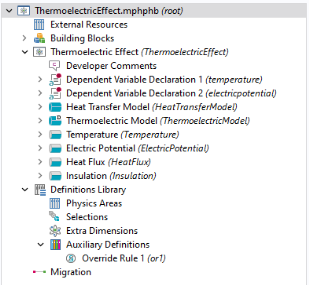
It is good practice to save the physics interface after completing some steps. From the File menu, choose Save and create a physics builder file, ThermoelectricEffect.mphphb in the default location. Click Save.
|
|
1
|
In the Physics Interface toolbar click Dependent Variable Declaration (
 ). Or right-click Thermoelectric Effect (Physics Interface 1) node and from the Variables menu select Dependent Variable Declaration. ). Or right-click Thermoelectric Effect (Physics Interface 1) node and from the Variables menu select Dependent Variable Declaration. |
|
2
|
|
-
|
|
-
|
Click the Select Quantity button (
 ), and from the Physical Quantity dialog select Temperature (K) under General, which makes suitable default values appear for the variable name and description. ), and from the Physical Quantity dialog select Temperature (K) under General, which makes suitable default values appear for the variable name and description. |
|
-
|
|
-
|
|
3
|
Keep the default Preferences settings that make the dependent variable available for plotting (Show in plot menu) and for use as an input in other physics interfaces (Announce variable to common inputs).
|
|
4
|
Keep the default Discretization settings (for second-order Lagrange elements).
|
|
5
|
|
6
|
|
-
|
|
-
|
Click the Select Quantity button (
 ), and from the Physical Quantity dialog select Electric potential (V) under Electromagnetics, which makes suitable default values appear for the variable name and description. ), and from the Physical Quantity dialog select Electric potential (V) under Electromagnetics, which makes suitable default values appear for the variable name and description. |
|
-
|
|
-
|
|
7
|
|
1
|
|
2
|
|
-
|
In the Description field enter Heat transfer model. Click the Rename Node Using This Text button (
 ) to update the node name in the Physics Builder tree. ) to update the node name in the Physics Builder tree. |
|
-
|
|
-
|
|
3
|
Under Restrictions keep the default setting Same as parent for both the Allowed space dimensions and Allow study types lists. If you select Customized, you can restrict the feature to a subset of the allowed space dimensions or study types for the physics interface.
|
|
4
|
Keep the default values for the rest of the sections for the Heat Transfer Model node.
|
|
5
|
Right-click the Heat Transfer Model node and from the Variables menu select Dependent Variable Definition (
 ). ). |
|
6
|
In the Settings window locate the Definition section. From the Physical quantity list select From built-in quantities.
|
|
7
|
Click the Select Quantity button (
 ) to open the Physical Quantity dialog, and then select Temperature (K) under General. Click OK. ) to open the Physical Quantity dialog, and then select Temperature (K) under General. Click OK. |
|
8
|
Keep the default settings for the rest of the Dependent Variable Definition node.
|
|
9
|
|
10
|
|
-
|
|
-
|
|
-
|
|
-
|
Click the Select Quantity button (
 ) to open the Physical Quantity dialog and then select Thermal conductivity (W/(m*K)) under Transport. Click OK. ) to open the Physical Quantity dialog and then select Thermal conductivity (W/(m*K)) under Transport. Click OK. |
|
-
|
Keep the default settings for the Array type (Single) and Dimension (Scalar) lists for a basic scalar quantity. Also keep the default Allowed values to Any for an entry of a general scalar number.
|
|
-
|
|
11
|
Keep all other default values for the User Input node.
|
|
12
|
Right-click the User Input node and select Variable Definition (
 ) or click the same button in the toolbar. ) or click the same button in the toolbar. |
|
13
|
Keep all other default values for the Variable Definition subnode.
|
|
14
|
Right-click the Heat Transfer Model node and from the Equations menu select Weak Form Equation (
 ). Or click the same button in the toolbar. ). Or click the same button in the toolbar. |
|
15
|
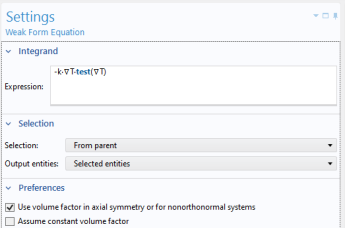
In the Settings window, locate the Integrand section. In the Expression field enter -k·∇T·test(∇T). This expression implements the heat equation formulation for this interface.
|
|
16
|
Keep all other default values for the Weak Form Equation node.
|
|
1
|
|
2
|
|
-
|
In the Description field enter Thermoelectric model. Click the Rename Node Using This Text button (
 ) to update the node in the Physics Builder. ) to update the node in the Physics Builder. |
|
-
|
|
-
|
|
3
|
In the Preferences section select the Add as default feature checkbox. Keep the setting in the Default entity types list to make this a default physics model in all domains.
|
|
4
|
Keep the rest of the settings for the Thermoelectric Model.
|
|
5
|
Right-click the Thermoelectric Model node and from the Variables menu select Dependent Variable Definition (
 ). ). |
|
6
|
In the Settings window locate the Definition section. From the Physical quantity list select From built-in quantities. Click the Select Quantity button (
 ) to open the Physical Quantity dialog and then select Temperature (K). Click OK. Keep the other default settings. ) to open the Physical Quantity dialog and then select Temperature (K). Click OK. Keep the other default settings. |
|
7
|
Right-click the Thermoelectric Model node and from the Variables menu select Dependent Variable Definition (
 ). ). |
|
8
|
In the Settings window locate the Definition section. From the Physical quantity list select From built-in quantities. Click the Select Quantity button (
 ) to open the Physical Quantity dialog, and then select Electric potential (V) under Electromagnetics. Click OK. Keep the other default settings. ) to open the Physical Quantity dialog, and then select Electric potential (V) under Electromagnetics. Click OK. Keep the other default settings. |
|
1
|
|
2
|
|
-
|
|
-
|
|
-
|
|
-
|
Click the Select Quantity button (
 ) to open the Physical Quantity dialog and then select Thermal conductivity (W/(m*K)). ) to open the Physical Quantity dialog and then select Thermal conductivity (W/(m*K)). |
|
-
|
Keep the default settings in the Array type (Single) and Dimension (Scalar) lists for a basic scalar quantity. Also leave the Allowed values setting to Any for an entry of a general scalar number.
|
|
-
|
|
3
|
Keep all other default settings for the User Input 1 node.
|
|
4
|
|
5
|
Keep all default settings for the Variable Definition subnode.
|
|
6
|
|
7
|
|
-
|
|
-
|
|
-
|
|
-
|
Click the Select Quantity button (
 ) to open the Physical Quantity dialog and then select Electric conductivity (S/m). ) to open the Physical Quantity dialog and then select Electric conductivity (S/m). |
|
-
|
Keep the default settings in the Array type (Single) and Dimension (Scalar) lists for a basic scalar quantity. Also leave the Allowed values setting to Any for an entry of a general scalar number.
|
|
-
|
|
8
|
Keep all other default settings for the User Input 2 node.
|
|
9
|
|
10
|
Keep all default settings for the Variable Definition subnode.
|
|
11
|
|
12
|
|
-
|
|
-
|
|
-
|
|
-
|
Click the Select Quantity button (
 ) to open the Physical Quantity dialog and then select Seebeck coefficient (V/K). ) to open the Physical Quantity dialog and then select Seebeck coefficient (V/K). |
|
-
|
Keep the default settings in the Array type (Single) and Dimension (Scalar) lists for a basic scalar quantity. Also leave the Allowed values setting to Any for an entry of a general scalar number.
|
|
-
|
|
13
|
Keep all other default settings for the User Input 3 node.
|
|
14
|
|
15
|
Keep all default settings for the Variable Definition subnode.
|
|
1
|
Right-click the Thermoelectric Model node and from the Variables menu select Variable Declaration (
 ). ). |
|
2
|
|
-
|
|
-
|
|
-
|
|
-
|
|
-
|
Click the Select Quantity button (
 ) to open the Physical Quantity dialog and then select Inward heat flux (W/m2). Click OK. ) to open the Physical Quantity dialog and then select Inward heat flux (W/m2). Click OK. |
|
3
|
|
4
|
|
5
|
Keep all other default settings for the Variable Definition 1 subnode.
|
|
6
|
Right-click the Thermoelectric Model node and from the Variables menu select Variable Declaration (
 ). ). |
|
7
|
|
-
|
|
-
|
|
-
|
|
-
|
|
-
|
Click the Select Quantity button (
 ) to open the Physical Quantity dialog and then select Current density (A/m2). ) to open the Physical Quantity dialog and then select Current density (A/m2). |
|
8
|
|
9
|
In the Settings window locate the Definition section. In the Expression field, enter -sigma·(∇V+S*∇T). Keep all other default settings for the Variable Definition 1 subnode.
|
|
10
|
Right-click the Thermoelectric Model node and from the Variables menu select Variable Declaration (
 ). ). |
|
11
|
|
-
|
|
-
|
|
-
|
|
-
|
|
-
|
Click the Select Quantity button (
 ) to open the Physical Quantity dialog, and then select Electric potential (V). Click OK. ) to open the Physical Quantity dialog, and then select Electric potential (V). Click OK. |
|
12
|
|
13
|
In the Settings window locate the Definition section. In the Expression field enter S*T. Keep all other default settings for the Variable Definition 1 subnode.
|
|
14
|
Right-click the Thermoelectric Model node and from the Variables menu select Variable Declaration (
 ). ). |
|
15
|
|
-
|
|
-
|
|
-
|
|
-
|
|
-
|
Click the Select Quantity button (
 ) to open the Physical Quantity dialog, and then select Electric field (V/m). Click OK. ) to open the Physical Quantity dialog, and then select Electric field (V/m). Click OK. |
|
16
|
|
17
|
In the Settings window locate the Definition section. In the Expression field enter −∇V. Keep all other default settings for the Variable Definition 1 subnode.
|
|
18
|
Right-click the Thermoelectric Model node and from the Variables menu select Variable Declaration (
 ). ). |
|
19
|
|
-
|
|
-
|
|
-
|
|
-
|
|
-
|
Click the Select Quantity button (
 ) to open the Physical Quantity dialog, and then select Heat source (W/m3). Click OK. ) to open the Physical Quantity dialog, and then select Heat source (W/m3). Click OK. |
|
20
|
|
21
|
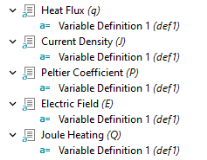
In the Settings window locate the Definition section. In the Expression field, enter J·E. Keep all other default settings for the Variable Definition 1 subnode.
|
|
1
|
Right-click the Thermoelectric Model node and from the Equations menu select Weak Form Equation (
 ). Or click the Weak Form Equation button in the toolbar. ). Or click the Weak Form Equation button in the toolbar. |
|
2
|
In the Settings window locate the Integrand section. In the Expression field, enter q·test(∇T)+Q*test(T). Press Ctrl+Space to enter the del operator (∇) and the dot product (·).
|
|
3
|
|
4
|
In the Settings window, locate the Integrand section. In the Expression field, enter -J·test(E). Note that -E is used instead of ∇V. Either syntax would work.
|
|
1
|
|
2
|
|
3
|
|
4
|
|
5
|
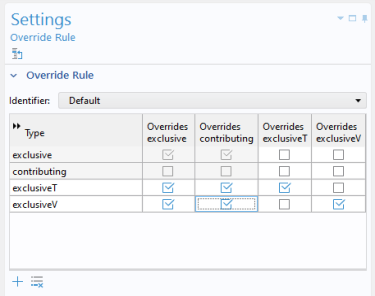
Click to set the Overrides exclusive and Overrides contributing columns for exclusiveT and exclusiveV to a green check mark.
|
|
6
|
|
7
|
Click in column Overrides exclusiveV across from exclusiveV to set to a green check mark. The Settings window should match the figure.
 |
|
1
|
|
2
|
|
-
|
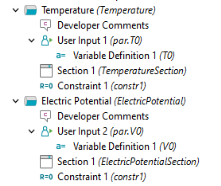
In the Description field enter Temperature. Click the Rename Node Using This Text button (
 ) to update the node in the Physics Builder. ) to update the node in the Physics Builder. |
|
-
|
|
-
|
|
3
|
In the Restrictions section, keep the default setting (Same as parent) for the Allowed space dimensions and Allow study types lists.
|
|
4
|
|
-
|
Click the Add button
 underneath the list. Select Pair and click OK. It is added to the list under Applicable entities. This makes the boundary condition available for all those boundary types. underneath the list. Select Pair and click OK. It is added to the list under Applicable entities. This makes the boundary condition available for all those boundary types. |
|
-
|
|
-
|
|
5
|
|
6
|
|
-
|
|
-
|
|
-
|
|
-
|
Click the Select Quantity button (
 ) to open the Physical Quantity dialog and then select Temperature (K). ) to open the Physical Quantity dialog and then select Temperature (K). |
|
-
|
Keep the default settings in the Array type (Single) and Dimension (Scalar) lists for a basic scalar quantity. Also leave the Allowed values setting to Any for an entry of a general scalar number.
|
|
-
|
In the Default value field enter 293.15[K] corresponding to a room temperature of 20 degrees Celsius.
|
|
7
|
Keep all other defaults for the User Input 1 node.
|
|
8
|
|
9
|
Keep all defaults for the Variable Definition 1 subnode.
|
|
10
|
|
11
|
|
-
|
|
-
|
|
-
|
Click the Add (
 ) button and choose User Input 1 (par.T0). Click OK and it is added the Group members list. ) button and choose User Input 1 (par.T0). Click OK and it is added the Group members list. |
|
12
|
Right-click the Temperature node and from the Equations menu select Constraint (
 ). Or click the same button in the toolbar. ). Or click the same button in the toolbar. |
|
13
|
In the Settings window locate the Declaration section. In the Expression field enter T0-T to make the temperature T equal to T0 on the boundary (the constraint makes the expression equal to zero).
|
|
14
|
Locate the Shape Declaration section and from the Physical quantity list select From built-in quantities.
|
|
15
|
Click the Select Quantity button (
 ) to open the Physical Quantity dialog, and then select Temperature (K). ) to open the Physical Quantity dialog, and then select Temperature (K). |
|
16
|
Keep all other default values for the Constraint 1 node.
|
|
1
|
|
2
|
|
-
|
In the Description field enter Electric potential. Click the Rename Node Using This Text button (
 ) to update the node in the Physics Builder. ) to update the node in the Physics Builder. |
|
-
|
|
-
|
|
3
|
In the Selection Settings section:
|
|
-
|
From the Override rule list choose Locally defined. Keep the default Override Rule 1 in the Link list.
|
|
-
|
|
4
|
|
5
|
|
-
|
|
-
|
|
-
|
|
-
|
Click the Select Quantity button (
 ) to open the Physical Quantity dialog, and then select Electric potential (V). Click OK. ) to open the Physical Quantity dialog, and then select Electric potential (V). Click OK. |
|
-
|
Keep the default settings in the Array type (Single) and Dimension (Scalar) lists for a basic scalar quantity. Also leave the Allowed values setting to Any for an entry of a general scalar number.
|
|
-
|
|
6
|
Keep all other defaults for the User Input 1 node.
|
|
7
|
|
8
|
Keep all other defaults for the Variable Definition 1 subnode.
|
|
9
|
|
10
|
|
-
|
|
-
|
|
-
|
Click the Add (
 ) button and choose User Input 2 (par.V0). Click OK and it is added the Group members list. ) button and choose User Input 2 (par.V0). Click OK and it is added the Group members list. |
|
11
|
|
12
|
In the Settings window locate the Declaration section. In the Expression field, enter V0-V, which constrains the value of the potential V to V0.
|
|
13
|
Locate the Shape Declaration section and from the Physical quantity list select From built-in quantities.
|
|
14
|
Click the Select Quantity button (
 ) to open the Physical Quantity dialog, and then select Electric potential (V). ) to open the Physical Quantity dialog, and then select Electric potential (V). |
|
1
|
|
2
|
|
-
|
In the Description field enter Heat flux. Click the Rename Node Using This Text button (
 ) to update the node in the Physics Builder. ) to update the node in the Physics Builder. |
|
-
|
|
-
|
|
3
|
In the Selection Settings section from the Override type list choose Contributing (that is, more than one heat flux can contribute to the total heat flux across a boundary).
|
|
4
|
|
5
|
|
-
|
|
-
|
|
-
|
|
-
|
Click the Select Quantity button (
 ) to open the Physical Quantity dialog, and then select Inward heat flux (W/m^2). Click OK. ) to open the Physical Quantity dialog, and then select Inward heat flux (W/m^2). Click OK. |
|
-
|
Keep the default settings in the Array type (Single) and Dimension (Scalar) lists for a basic scalar quantity. Also leave the Allowed values setting to Any for an entry of a general scalar number.
|
|
-
|
|
6
|
|
7
|
Leave all other default settings for the Variable Definition 1 subnode.
|
|
8
|
|
9
|
|
-
|
|
-
|
|
-
|
Click the Add (
 ) button and choose User Input1 (par.qin). Click OK and it is added the Group members list. ) button and choose User Input1 (par.qin). Click OK and it is added the Group members list. |
|
10
|
|
11
|
In the Settings window locate the Integrand section. In the Expression field, enter qin*test(T). For a theoretical explanation of this expression, see the earlier theory section.
|
|
1
|
|
2
|
|
-
|
In the Description field enter Insulation. Click the Rename Node Using This Text button (
 ) to update the node in the Physics Builder. ) to update the node in the Physics Builder. |
|
-
|
|
-
|
|
3
|
|
4
|
In the Preferences section, select the Add as default feature checkbox. Keep the default setting in the Default entity types list to make this a default boundary condition on Exterior boundaries only.
|
|
1
|
|
2
|
|
3
|
|
4
|
|
-
|
|
-
|
|
-
|
|
6
|
Right-click the Surface (
 ) node and select Rename (or click Surface and press F2) In the Rename Surface dialog, in the New label field enter Temperature. Click OK. ) node and select Rename (or click Surface and press F2) In the Rename Surface dialog, in the New label field enter Temperature. Click OK. |
|
7
|
|
8
|
|
-
|
|
-
|
In the Description field enter Temperature. This makes temperature the default for all scalar plots.
|
|
1
|
|
2
|
In the Settings window for Physics Area under Parent Area, expand the Root > Heat Transfer folder (
 ). Right-click Heat Transfer and select Set as Parent ( ). Right-click Heat Transfer and select Set as Parent ( ) to sort this physics area under the Heat Transfer branch in the Model Wizard and Add Physics windows. ) to sort this physics area under the Heat Transfer branch in the Model Wizard and Add Physics windows. |
|
3
|
In the Physics Area Settings section:
|
|
-
|
|
-
|
|
-
|
The default Icon is physics.png (
 ), which is appropriate for this physics. Otherwise, click Browse to use another icon. ), which is appropriate for this physics. Otherwise, click Browse to use another icon. |
|
-
|
In the Weight field enter 10 to make the Thermoelectric Devices area appear last in the list under Heat Transfer (the higher the weight, the lower position the physics area gets in the tree of physics interfaces).
|
|
4
|
Click the Thermoelectric Effect node. In the Settings window for Physics Interface, expand the Physics Area section.
|
|
5
|
Expand the Heat Transfer folder. Right-click Thermoelectric Devices (
 ) and select Set as Parent ( ) and select Set as Parent ( ). This sorts the physics interface under the selected physics area. ). This sorts the physics interface under the selected physics area. |
|
6
|
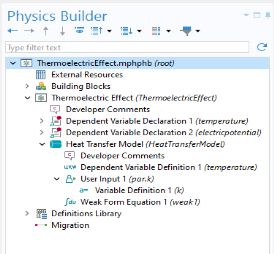
Save the file that contains the physics interface as ThermoelectricEffect.mphphb.
|
 ) node.
 ).
). ).
).
 ).
). ).
).  ).
).  ).
).  ) from the context menu.
 ) node to the
  ) from the context menu.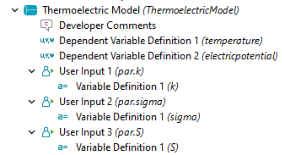
 ).
). ).
).  ).
). ).
). ).
).  ).
). ) right-click
  ) and select
  ).
). ) twice to add two rows and two columns.
 ).
).  ).
).  ).
).  ).
). ).
). ).
).  ).
).  ).
).  ).
). 
 ).
). ).
). ).
).  ).
). ).
).  ).
).
 ).
). ) and select
  ).
). ) node and select
  ).
). ) under the
  ) and select
  ).
). ) node and select
  ).
).  ) and select
  ).
).