You can compare two different version of a Physics Builder file. The comparison result appears in the Comparison Result window. Click the
Comparison Result (

) button in the
Home toolbar to toggle this window on and off.
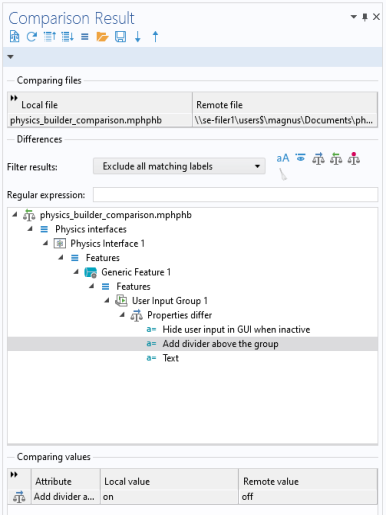
At the top of the Comparison Result window there is a toolbar with the following buttons:
Under Comparing files, you find the file paths to the local model and the remote model. The local model is typically the model open in the COMSOL Desktop, and it can have been modified after the last save. The left column is called
Local file (Open application) when the local model is the opened model or application. When the local model is a new model that has not yet been saved, the left column is called
Open application.
Under Differences, you can use the
Filter results list to control filtering with the options
No filter,
Exclude all matching labels (the default), and
Include all matching labels. The entries in the
Regular expression field define what node labels to filter. You can make the filtering case sensitive by selecting the
Case Sensitive button (

) box next to the list. The filter matching is done with regular expressions, and any label that contains a matching text will be either included or excluded. Filtering can be disabled by choosing
No filter from the
Filter results list. Click the
Show Only Active button (

) next to the list to exclude inactive settings from the comparison.
For nodes that correspond to a node in the Physics Builder tree, double-click the node (or right-click and choose Go to Source) in the tree of nodes with differences to display the corresponding node in the tree in the local file. When applicable, you can also right-click a node and choose
Go to Remote Source to display the corresponding node in the Physics Builder tree in the remote file. You can also right-click a node and choose
Override Difference in Local File (

) or
Override Difference in Remote File (

) to remove that difference in either the local file or the remote file.
Selecting a node in the tree will update the table under Comparing values below the tree. This table shows the attributes of the selected node, both in the local model (
Local value column) and the remote model (
Remote value column). This table is particularly interesting for the nodes labeled
Attributes differ because they show the values that differ. Parent nodes can also show the same differences but typically with a larger number of attributes that have the same local and remote values. For differences that contain long entries or large arrays, there is an option to show a more detailed difference in a separate window for a selected table. Either double-click the table row or click the
Detailed Comparison of Selected Attribute button (

) below the table to open the
Compare Attribute window.
 ), to make a new comparison. A
  ), to update the comparison.
 ) and
) and  ), to collapse or expand all branches in the comparison tree.
 ), to toggle between the view with the comparisons in a tree and a view with a list of the differences.
 ), to load the results from another comparison from an XML-file.
 ), to save the results from the current comparison to an XML-file.
 ), to move to the next difference in the tree with nodes that differ under
  ), to move to the previous difference in the tree with nodes that differ under