Creating and Assigning Tags
The tags in the demo database were all created from folders on the file system. You can also create new tags directly in the database and assign them to your models and data files.
1
Write tutorials in the text field in the Model Manager window and click Search.
The search result contains about 500 items, all somehow related to various modeling tutorials for the COMSOL Desktop modeling environment
2
Click the Tree button () in the toolbar to show the tag tree.
3
You are going to create a new tag in the database that you will assign to all models used in tutorials. Having such a tag will make it easier to quickly find all tutorials in the future.
1
Click the Table button () to switch back to the Table View.
2
Click the Add Filter button () in the toolbar and select Item Version Type ().
The Filter dialog is opened enabling you to apply a separate filter on the types of item versions to include in the search result.
3
In the Filter dialog, select the Model checkbox. Click OK.
The search result is reduced to about 200 models.
1
Repeatedly click the Show More button () in the toolbar until all models have been appended to the table.
2
3
In the Home toolbar, in the Database section, click the New Tag button ().
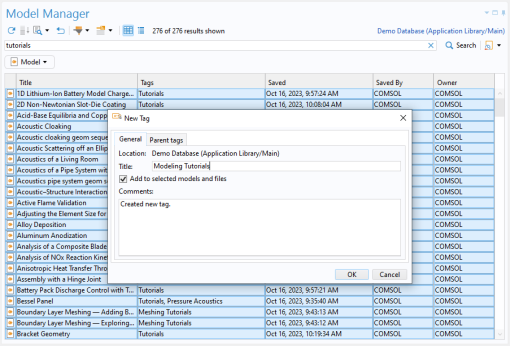
The New Tag dialog is opened with the checkbox Add to selected models and files already selected. The dialog enables you to create a new tag and simultaneously assign the tag to the current selection of models and data files in the Model Manager window.
4
Write Modeling Tutorials in the Title field. Click OK.
The save takes as few seconds as Model Manager makes the new tag assignment available for searching and filtering.
5
At the bottom of the Model Manager window, click the link text informing you that the current search result is out of date.
The current search is reloaded. Notice that the Tags column contains your new tag assigned to all items in the search result.
6
Click the Reset button () to clear the current search term and filter. Click the Tree button () in the toolbar to switch to the Tree View. Expand the Modeling Tutorials tag tree node to find all tutorial models.
The Model Manager window shows the first 100 items under a tag tree node. Expand the Show More tree node () to reveal the next 100 items.
7
Click the Table button () to return to the Table View.
With the new tag for modeling tutorials in the database, it is a simple matter of quickly finding such models by applying a tag filter.
1
Click the Add Filter button () in the toolbar and select Tag ().
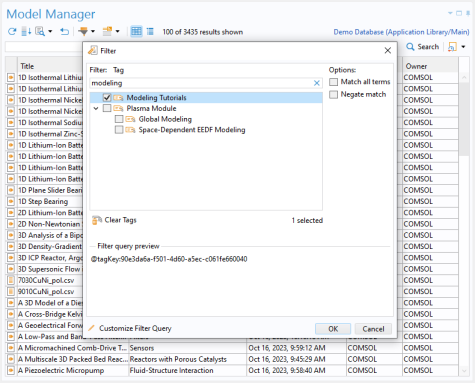
The Filter dialog is opened enabling you to apply a separate filter on the assigned tags of items to include in the search result.
2
Write modeling in the text field above the tag tree to filter the available tags on their titles.
3
Select the Modeling Tutorials checkbox and click OK.
The search result only includes the models that are assigned the Modeling Tutorial tag (). From here one can continue to drill down in the search result by writing search terms or applying additional filters.
4
Click on the Modeling Tutorials filter pill () and select Remove () to remove the filter.
In this case, you could have also found all tutorial models by simply writing modeling tutorials in the text field and clicking Search. But for tags whose titles are likely to also appear in the titles or descriptions of model and data files, using an explicit Tag filter () is a better strategy.
Assigning Existing Tags to Items
The tags in the demo database are all of a purely descriptive nature related to what the models and data files contain. You can also use tags for simple project and workflow management.
1
Click the New Tag button () in the Database section in the Home toolbar.
2
In the Title field, write Projects.
3
Make sure that the checkbox Add to selected models and files is cleared. Click OK.
A new tag that can be used to group models and data files involved in various simulation projects is created in the database.
1
Click the New Tag button () again.
2
In the Title field, write In Progress.
3
Click the Parent tags tab.
A tag tree is shown enabling you place the new tag under an existing tag.
4
Find and select the Projects tag () — for example by typing projects in the text field above the tree.
5
Click OK to create the tag.
For the purpose of this part of the tutorial, assign the In Progress tag to a few select models:
1
Write electrical heating in the Model Manager window and click Search.
2
3
In the Home toolbar, in the Database section, click the Set Tags button ().
The Set Tags dialog is opened enabling you to set the assigned tags of one or more items. You will notice that some of the checkboxes in the tag tree have an indeterminate selection. These are tags that are assigned to some, but not all, of the items. Leaving these indeterminate checkboxes as-is means that these assignments will not be modified when you click OK.
4
Find and select the In Progress tag — for example by typing progress in the text field above the tree.
5
Click OK to assign the In Progress tag to the items.
Much like the modeling tutorials, you can now find these models and data files by searching on the tag title or by applying the tag as a filter. Perhaps you use the In Progress tag (), for example, as a way of signaling to your coworkers that you are currently working on updates to these models, which could be a more lightweight alternative to setting restrictive permissions for the models.
Assigning Tags when Saving Models
So far you have worked exclusively with tags from the Model Manager workspace. You can also assign tags directly when saving a model version from the Save window. To this end, create a new blank model in the COMSOL Desktop to act as a placeholder for a model tutorial.
1
From the File menu, select New. Click Blank Model ().
2
From the File menu, select Save To ().
3
In the Save window, choose the demo database in the list of options.
4
In the Title field, write My Tutorial.
5
In the Comments field, write A new model tutorial.
The Tags section in the Save window shows the tags assigned to the model, which in the present case are none.
1
Click the Add Tag button ().
2
Write Modeling Tutorials and press Enter.
The Modeling Tutorials tag is added as a tag pill in the Tags section.
3
You can also create a new tag in the database from the Save window.
1
Click the New Tag button () to open the New Tag dialog.
2
Write Tutorial Project in the Title field.
3
On the Parent tags tab, select the Projects tag in the tag tree.
4
With the three tags added to the Tags section, you are ready to save the new model in the database. Click Save ().
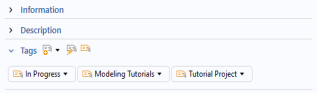
Return to the Model Manager workspace. Find and select the new model in the Model Manager window — for example by first searching on my tutorial. The assigned tags are all shown as tag pills in the Tags section in the Settings window. You can also verify that you can find the model under these three tags in the Tree View of the Model Manager window.