 ) to create the selection using the selection tools for individual geometric entities (boundaries, for example) on the chosen geometric entity level. To add this node, right-click the Definitions node and choose Selections > Explicit.) to create the selection using the selection tools for individual geometric entities (boundaries, for example) on the chosen geometric entity level. To add this node, right-click the Definitions node and choose Selections > Explicit.
 |
To deselect one or some of the faces or edges that make up the group with continuous tangents, first clear the Group by continuous tangent checkbox.
|
|
•
|
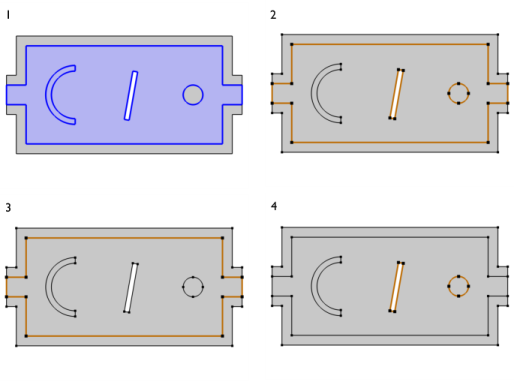
All (default) to select all exterior boundaries (see 2 in Figure 6-22).
|
|
•
|
Adjacent to outside to select the outer surfaces (edges in 2D) bounding the domain selection (see 3 in Figure 6-22).
|
|
•
|
Adjacent to inside, to select the outer boundaries that are adjacent to a cavity in the domain selection (see 4 in Figure 6-22).
|
|
•
|
None to not select any exterior boundaries.
|
 |
The options Adjacent to outside and Adjacent to inside are not supported for virtual geometry, for imported meshes, and for mesh-based geometries.
|

 |
 |