
For the settings in the Solution node’s Settings window under Cluster Computing, see Cluster Computing Settings below.
|
|
For the settings in the Solution node’s Settings window under Cluster Computing, see Cluster Computing Settings below.
|
 ). An icon (
 ) indicates which sequences are excluded. If you want to run an excluded sequence when computing the study, right-click the node and select Run When Computing Study (
 ) — this excludes all other sequences in the particular study. If all sequences are excluded when the study is computed, a new sequence with default settings is generated.
  ) and select Compute (
 ) or press F8. You can also click Compute (
 ) in the main and Study toolbars and in the toolbar at the top of the study steps’ and solver nodes’ Settings windows.
 ) from the Plots submenu to add the plot groups and plots that are added by default if the Generate default plots checkbox is selected. Right-click the main Study node and choose Reset Default Plots (
 ) from the Plots submenu to restore the default plots and their settings to the default plots and settings if you have changed or removed the default plots.
|
•
|
Compute Selected Step (
 ) (or press F7) to compute just the selected study step. ) (or press F7) to compute just the selected study step. |
|
•
|
Compute to Selected (
 ) to compute from the first to the selected study step. ) to compute from the first to the selected study step. |
|
•
|
Compute from Selected (
 ) to compute for all study steps from the selected study step to the last. ) to compute for all study steps from the selected study step to the last. |
|
•
|
Run (
 ) (or press F8) to compute the entire solver sequence. ) (or press F8) to compute the entire solver sequence. |
|
•
|
Run to Selected (
 ) (or press F7) to compute the solver sequence from the top down to the selected node. ) (or press F7) to compute the solver sequence from the top down to the selected node. |
|
•
|
Run from Selected (
 ) to compute from the Compile Equations node ( ) to compute from the Compile Equations node ( ) that is associated with the selected node down to the end of the solver sequence. ) that is associated with the selected node down to the end of the solver sequence. |
 ) (or press F5). This is useful in the following situations when you have:
 |
 |
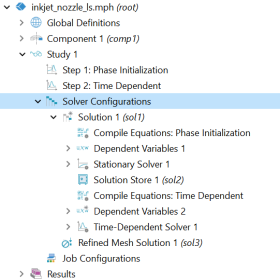
A Solver Configurations or Job Configurations node displays automatically if it has content. Otherwise, if you click the Show More Options button (
 ) and select Solver and Job Configurations in the Show More Options dialog, it is available as an option from the context menu. ) and select Solver and Job Configurations in the Show More Options dialog, it is available as an option from the context menu. |
|
•
|
|
•
|
Right-click a Study node and select Compute to compute the solver that is set to run when the study is computed, if such a solver configuration exists. If no solver configuration exists, or if all sequences are excluded, a new solver configuration is generated and computed.
 |
|
•
|
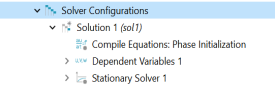
Run to Selected (
 ) (or press F7), to run a particular solver, or ) (or press F7), to run a particular solver, or |
|
•
|
Run from Selected (
 ) to run the selected solver and all solvers below it in the sequence, or ) to run the selected solver and all solvers below it in the sequence, or |
|
•
|
Run (or press F8), to run the entire solver configuration.
|
 |