 ) to partition geometric entities of a mesh by creating at least one new geometric entity for the elements enclosed in the specified ball, as seen in Figure 8-93.
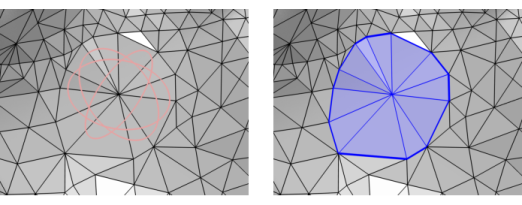 ) to partition geometric entities of a mesh by creating at least one new geometric entity for the elements enclosed in the specified ball, as seen in Figure 8-93.
 ) node, select one or several entities in the Graphics window, then choose one of the following:
|
•
|
Right-click in the Graphics window to open The Graphics Context Menu. Select Partition with Ball (
 ) from the Booleans and Partitions menu. ) from the Booleans and Partitions menu. |
|
•
|
|
•
|
Right-click a Mesh-Based Geometry node or a Mesh node and select Partition with Ball (
 ) from the Booleans and Partitions menu. ) from the Booleans and Partitions menu. |
|
•
|
Choose Entire geometry to divide all geometric entities according to the specified ball.
|
|
•
|
Choose Domain, Boundary, or Edge to specify the domains, boundaries, or edges, respectively, that you want to partition or choose a named selection to refer to a previously defined selection. Use All domains, All boundaries, or All edges to select all entities of the specified dimension.
|
 |
|
 ) on
) on