The Property Group nodes (

) define output properties and declare model inputs on which the property values can depend. There is a slight difference in the
Settings window between, on one hand, the
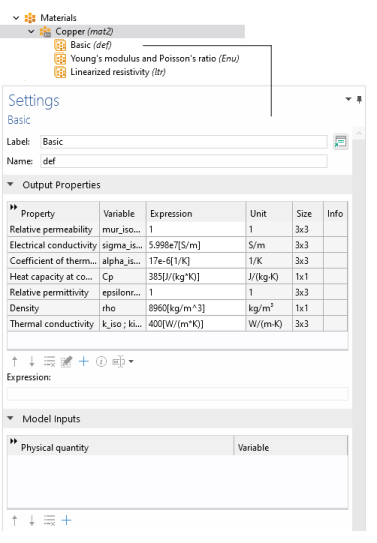
Basic and user-defined property groups, and on the other hand the built-in material model groups. The latter do not allow adding additional output properties, but all property groups allow declaring model inputs and also add local properties which can be used in output property expressions.
In the Label field, enter a suitable label for the property group if needed. Changing the
Name field changes the namespace identifier used when defining output property variables and functions. You can, for example, make the identifier shorter.Changing the name of a user-defined property group will also update its tag. Other property group types have fixed tags.
Click the Select Quantity button (

) to add another output property. Select the desired quantity from the tree in the
Physical Quantity dialog that opens.
If required, edit the expressions in the Expression column. Edit directly in the table or in the
Expression field underneath the table. You can insert predefined expressions by clicking the
Insert Expression button (

) or clicking Ctrl+Space and then choosing an expression from the list of predefined expressions. You can also click the
Edit button (

), which opens a dialog for easier specification of orthotropic and anisotropic material properties (tensors), when applicable. Select
Isotropic,
Diagonal,
Symmetric, or
Full when entering the data in the material property’s dialog. In the
Expression column, use a syntax with curly braces such as
{k11, k21, k31, k12, k22, k32, k13, k23, k33} to enter anisotropic material properties for a 3-by-3 tensor
kij in the order
k11,
k21,
k31,
k12,
k22,
k32,
k13,
k23, and
k33. 1, 2, and 3 represent the first, second, and third direction in the active coordinate system. In many cases (for example, when entering the elasticity matrix for structural mechanics), the matrix must for physical reasons be symmetric. The upper diagonal part of the matrix you enter will then be mirrored when forming the actual constitutive matrix, and the lower diagonal part is ignored.
The Variable column lists the output variable names depending on the type of anisotropy. For an isotropic
k,
k_iso represents its single scalar value.
The Unit and
Size columns provide information about the unit and size of the output property. The size is 1x1 for a scalar value such as density and 3x3 for a tensor (matrix) quantity such as electric conductivity.
If desired, you can add information about the property, such as references for its value or expression. To do so, click the Edit/Show Property Information button (

), enter the property information in the dialog that opens, and then click
OK. When information is available for a property, an information symbol (

) appears in the
Info column.
Use the Move Up (

),
Move Down (

), and
Delete (

) buttons to organize the table as needed.
The Basic property group under a material, as well as any user-defined group, creates the following variables:
The model inputs are physical quantities, such as temperature, that are used as inputs in the expressions that define the output properties (for example, to describe a temperature-dependent physical quantity). For example, adding Temperature as a model input makes the variable name
T available for use in an expression for the heat capacity at constant pressure
Cp, such as
300[J/(kg*K)]*T[1/K], which works regardless of the name of the actual dependent variable for temperature in the model that uses the temperature-dependent material.
Click the Select Quantity button (

) to add another model input, which you choose from one of the available physical quantities in the
Physical Quantity dialog that opens.
Use the Move Up (

),
Move Down (

), and
Delete (

) buttons to organize the table as needed.
Here you can enter user-defined properties which are local to the property group. This means that they are accessed from physics interfaces and do not generate variables in the material. scope. These local properties become available for use in the property group’s output property expressions, and can also be accessed more generally using the full property group scope.
Enter a name in the Name column and its definition in the
Expression column. You can also enter a
Description. Information about all local properties from all property groups is also displayed in the
Material Contents section of the parent
Material node. In that node, only the
Expression column is editable.
Material property groups are automatically added to the material node in the Model Builder. You can also add additional predefined property groups or create a
User-Defined Property Group (in the
Materials toolbar, click
User-Defined Property Group (

)or right-click the
Material node). The available properties are collected in property groups according to the physical context.
Each property group has a Settings window for
Property Group. When a
Model Builder node is clicked (for example,
Basic), the
Settings window for
Property Group displays specific information about that property group. The physical properties for all property groups are summarized in a
Material Contents table in the
Settings window for the parent
Material node.


 ),
),  ), and
  ) buttons to organize the tables as needed.