Use the Sphere (

) node to create a sphere or ball in your geometry, as shown in
Figure 7-50.
To add a Sphere node, in the
Geometry toolbar click
Sphere (

). You can also right-click the
Geometry node to add this node from the context menu. Then enter the properties of the sphere using the following sections:
From the Type list, select
Solid (default) or
Surface to specify if the sphere is a solid object or a (hollow) surface object.
From the Defined by list, select
Size and position (default) to specify the radius of the sphere as well as specify its position. Select
Bounding ball (approximate) to create a sphere that approximately bounds a selection of objects or entities. A bounding ball is useful to replace a complicated imported object with a sphere or to create a fluid domain around objects.
Select Centroid (default) from the
Center list to let the center of the sphere be determined by the centroid of the input entities or select
Manual to manually specify the position of the sphere.
This section is shown if Defined by is set to
Size and position. Define the radius of the sphere in the
Radius field.
This section is shown if Defined by is set to
Bounding ball (approximate). From the
Geometric entity level list, choose the level of the entities to bound:
Object (default),
Domain, or
Boundary,
Edge, or
Point. From the
Selection list, choose
Manual (default) to select the geometry objects that you want to bound in the
Graphics window. Click the
Activate Selection button to toggle between turning ON

and OFF

the
Input objects selections. If the geometry sequence includes user-defined selections above the
Sphere node, you can choose one of them from the
Selection list. Alternatively, choose
All objects to select all objects or choose
All nonconstruction objects to automatically select all objects that have not been marked as
Construction Geometry.
For the setting Geometric entity level: Object, select the checkbox
Keep input objects (selected by default) to keep the objects that are bounded. Clear the checkbox to delete the selected objects.
For Position type set to
Coordinates (default), enter the position of the sphere’s center using the
x,
y, and
z fields. For
Vertex, select a point in the
Graphics window. Click the
Activate Selection button to toggle between turning ON

and OFF

the
Position selections.
This section is shown if Defined by is set to
Bounding ball (approximate). Fill in the
Margin edit field to enlarge the sphere (or shrink it if the value is negative).
Specify the direction of the third axis of the sphere’s local coordinate system. From the Axis type list, choose
x-axis,
y-axis, or
z-axis (the default) to obtain an axis aligned with the specified coordinate axis. Choose
Cartesian to enter a direction vector using the
x,
y, and
z fields. Choose
Spherical to enter the direction using the angles
theta (polar, zenith) and
phi (azimuth).
Specify the rotational angle about the axis in the Rotation field. When this angle is zero (the default), the second axis of the sphere’s local coordinate system is parallel to the
xy-plane.
The coordinate system in which the position, axis, and rotation angles above are interpreted. From the Take work plane from list, select
This sequence (the default) to use a work plane earlier in the same geometry sequence, or choose a part instance earlier in the sequence to choose a work plane from that part. From the
Work plane list, select
xy-plane (the default, for a standard global Cartesian coordinate system) or select any work plane defined above this node in the geometry sequence. If you choose a work plane, the work plane and its coordinate system appear in the
Graphics window, using an extra coordinate triad with the directions
xw,
yw, and
zw (which are then used to specify the sphere’s position).
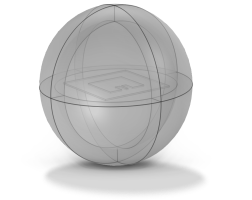
Layers can be used to create sandwich primitives by adding several concentric spheres, as shown in Figure 7-51. This is especially useful when specifying artificial domains in the physics, such as Infinite Element Domains and Perfectly Matched Layers. You specify the thicknesses and, optionally, names of each layer in the
Layers table. The outermost layer comes first. The layers are positioned inside the sphere’s radius. Each layer must have a minimal thickness (depending on the size of the geometry).
Select the Create Parameters checkbox to automatically create parameters for the coordinates and size of the sphere to be used in further geometry creation, mesh size settings, or physics set up. The created parameters can be seen in the variable tree that appears when pressing Ctrl+Space in an edit field in another feature.
Select the Resulting objects selection checkbox to create predefined selections (for all levels — objects, domains, boundaries, edges, and points — that are applicable) in subsequent nodes in the geometry sequence. To also make all or one of the types of resulting entities (domains, boundaries, edges, and points) that the sphere consists of available as selections in all applicable selection lists (in physics and materials settings, for example), choose an option from the
Show in physics (
Show in instances if in a geometry part) list:
All levels,
Domain selection,
Boundary selection,
Edge selection, or
Point selection. The default is
Domain selection, which is suitable for use with materials and physics defined in domains. For use with a boundary condition, for example, choose
Boundary selection. These selections do not appear as separate selection nodes in the model tree. Select
Off to not make any selection available outside of the geometry sequence. From the
Color list, choose a color for highlighting the resulting objects selection. See
Selection Colors.
When the Layers table is nonempty, select the
Create layer selections checkbox to create predefined domain selections for each specified layer and for the core domain. To also make the domains available as selections in all applicable selection lists (in physics and materials settings, for example), select the
Show in physics (
Show in instances if in a geometry part) checkbox (ON by default).
Select the Construction geometry checkbox to make the resulting objects available only in the feature’s geometry sequence. For more information, see
Construction Geometry.
