Using Part Libraries
The Part Libraries
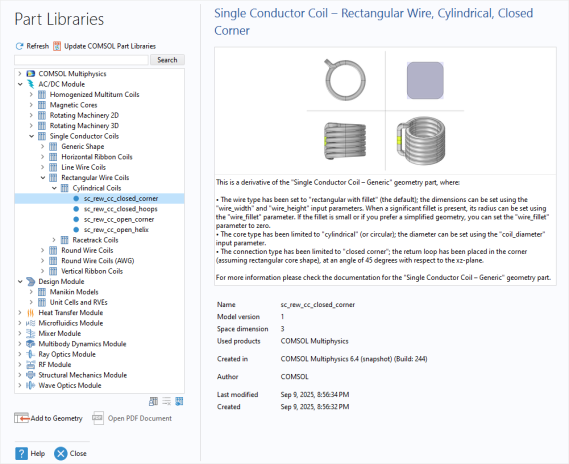
The Part Libraries window () (Figure 7-17) contains sets of parts that you can use as custom geometric parts representing common parts or components within an application area. Some of the add-on modules include their own part libraries with parts adapted for use within their respective application areas. The location of the corresponding MPH files is, for the Ray Optics Module, for example, C:\Program Files\COMSOL\COMSOL64\Multiphysics\parts\Ray_Optics_Module
Figure 7-17: The Part Libraries window with a Single Conductor Coil part from the AC/DC Module selected.
Opening the Part Libraries Window
You can open the Part Libraries window () in the following ways:
Click the Part Libraries button () on the Geometry toolbar.
By right-clicking the Geometry node () and choosing Parts > Part Libraries.
By right-clicking the Global Definitions node () and choosing Geometry Parts > Part Libraries.
By right-clicking the Geometry Parts node () and choosing Part Libraries.
By choosing Part Libraries from the Windows menu in the Home toolbar.
By clicking Choose from Library in a Part Instance node’s Settings window.
If you have added a linked part, by clicking Replace from Library in a Linked Part node’s Settings window.
You can set the root directory and create and remove a user-defined part library using The Preferences Window as described next.
Browse through the Part Libraries tree to see what parts are available for your license. Click to highlight the part in the tree and show a schematic and some information about it to the right, or search for a specific model.
Some parts have an associated documentation file in PDF format. For those parts, you can access this document as follows:
Currently, the following parts include an associated documentation file:
Under COMSOL Multiphysics > Random Surfaces: Random Flat Surface (random_flat_surface).
Under COMSOL Multiphysics: Propeller with Constant Pitch (propeller_constant_pitch).
Under AC/DC Module > Homogenized Multiturn Coils > Generic Shape: Homogenized Multiturn Coils — Generic (hc_generic_shape).
Under AC/DC Module > Magnetic Cores > Generic Shape: Magnetic Core — Generic (mc_generic_shape).
Under AC/DC Module > Rotating Machine 2D > Rotors > Internal: Internal Rotor — Embedded Magnets (embedded_magnet_internal_rotor_2d), Internal Rotor — V-shaped Embedded Magnets (embedded_magnet_v_shape_internal_rotor_2d), and Internal Rotor — Surface Mounted Magnets (surface_mounted_magnet_internal_rotor_2d).
Under AC/DC Module > Rotating Machine 2D > Stators > External: External Stator — Slotted (slotted_external_stator_2d).
Under AC/DC Module > Single Conductor Coils > Generic Shape: Single Conductor Coil — Generic (sc_generic_shape).
Under Mixer Module > Impellers, Axial: Propeller with Constant Pitch (propeller_constant_pitch).
Under Ray Optics Module > 3D > Aspheric Lenses: Aspheric Even Lens 3D (aspheric_even_lens_3d), Aspheric Odd Lens 3D (aspheric_odd_lens_3d), Aspheric Q-type Qbfs Lens 3D (aspheric_qtype_qbfs_lens_3d), and Aspheric Q-type Qcon Lens 3D (aspheric_qtype_qcon_lens_3d).
Under Ray Optics Module > 3D > Mirrors: Aspheric Even Mirror 3D (aspheric_even_mirror_3d), Aspheric Odd Mirror 3D (aspheric_odd_mirror_3d), Aspheric Q-type Qbfs Mirror 3D (aspheric_qtype_qbfs_mirror_3d), and Aspheric Q-type Qcon Mirror 3D (aspheric_qtype_qcon_mirror_3d).
Under Ray Optics Module > 3D > Spherical Lenses: Spherical Lens 3D (spherical_lens_3d).
Under Wave Optics Module > Rectangular Waveguides: Rectangular Waveguide Bend (rectangular_waveguide_bend), Rectangular Waveguide Bend (rectangular_waveguide_bend), Rectangular Waveguide Cross Section (rectangular_waveguide_cross_section), Rectangular Waveguide S-Bend (rectangular_waveguide_s_bend), Rectangular Waveguide Straight (rectangular_waveguide_straight), Rectangular Waveguide Straight-to-Ring Coupler (rectangular_waveguide_straight_to_ring_coupler), and Rectangular Waveguide Taper (rectangular_waveguide_taper).
Under Wave Optics Module > Slab Waveguides: Slab Waveguide Bend (slab_waveguide_bend), Slab Waveguide S-Bend (slab_waveguide_s_bend), Slab Waveguide S-Bend Directional Coupler (slab_waveguide_s_bend_directional_coupler), Slab Waveguide Straight (slab_waveguide_straight), Slab Waveguide Straight-to-Ring Coupler (slab_waveguide_straight_to_ring_coupler), and Slab Waveguide Taper (slab_waveguide_taper).
Part Libraries Preferences
The following settings can be modified using the buttons at the bottom of the Part Libraries tree on the Part Libraries page under Libraries in The Preferences Window and — if the Allow managing libraries in the Part Libraries window checkbox on that page is selected (the default) — also in the Part Libraries window itself.
Adding a User Part Library
To create a user part library, create the part under Global Definitions > Geometry Parts and then save the MPH file in the intended User Part Library folder. The parts in the user part library can then be added from that library when it is added to the Part Libraries window.
Click the Add User Library button () to add customized folders. In the User Part Library tree in the Browse for Folder dialog, navigate to a location on your computer where you want to create a custom part library folder. Or click Make New Folder. Click OK to save the changes and exit, or Cancel to exit without saving.
Optionally, you can replace the standard folder icon () with custom icons of your choice that reflect the content of your library folders. To use a custom icon for a folder, create a PNG-file with an image size of 16-by-16 pixels and save it in the folder under the name folder.png.
Set the Part Library Root
Click the Set Library Root button () to edit or set the root folder. This redirects COMSOL Multiphysics to a different folder where customized geometry models can be stored.
In the Part Library Root tree in the Browse for Folder dialog, navigate to the new root folder location or click Make New Folder. Click OK to save the changes and exit, or Cancel to exit without saving.
Remove Selected Part Library
This button is enabled after a User Part Library folder is created. Click any folder corresponding to a user part library, and then the click Remove Selected () button to remove it from the part libraries.
Opening and Adding a Part in COMSOL Multiphysics
Once you have located the part you want to add to the geometry — for example, you used a search and it was successful (see Searching the Part Libraries), or you browsed the Part Libraries tree — then to use the part:
Select the part, then click () Add to Geometry if opened from the Geometry branch or Add to Model if opened from the Global Definitions branch.
Right-click the part, then from the context menu select Add to Geometry if opened from the Geometry branch or Add to Model if opened from the Global Definitions branch.
The part then appears as a Loaded Part node under Parts () and also, if added to a geometry, in a Part Instance node () under the Geometry node in the Component. That Part Instance node calls the loaded part to create an instance of the part with the input parameters that you define under Input Parameters in the Part Instance node’s Settings window, when you build that node or all objects in the geometry.
When you replace a part in a loaded part, you click or select Replace in Model instead.
The part is added to the current component (the one that appears in the Graphics window). The part can only be added if it has the same space dimension as the current component.
When using a part in 3D, you can position it by matching a work plane in the part with a work plane in your model using the settings in under Position and Orientation of Output in the Part Instance node’s Settings window (see Part Instance).
Searching the Part Libraries
You can Search the part libraries to find parts. For example, enter all or part of the part name or any other phrase or words and click Search.
By default, the search includes all words in the Search field.
COMSOL Multiphysics part models are named using an underscore between words (for example, straight_pipe) because the part model name is also the name of the corresponding MPH file. The underscore is required to form a valid filename, so it is recommended that you, if you are not sure of the full name, enter only the first word in the Search field when searching for a part name.
Search Parameters
To search for part models by filename only, use the prefix “@name:”, for example @name:straight_pipe. You can also use the wildcard character ‘*’ at the beginning and the end of the search expression, for example @name:*pipe.
To search for a specific built-in geometric primitive or feature, use the scoping syntax @geom:<name>. For example, enter @geom:rot to find all part models that include rotations. Note, however, that the geometry features for a geometry model are part of the implementation and not directly visible.
To search for a phrase, enclose it in quotation marks (for example, "bent pipe"). The words can be part of the part model’s name or description.
If the search does not return any results, the Part Libraries window contains the message No Matching Model Found. Click the Refresh button () under the tree to return to the root Part Libraries folder list.