Installing on macOS
Installation Over the Internet
installation of a trial license over the Internet
A trial license can be given to you with the intention to test the software without any payment obligation for noncommercial and nonproduction use. This option is not available in all regions.
Installation of a Single User Trial License requires a license passcode. A passcode has a form similar to:
FFFFFFFF-TYUS-123456-1234567-123456789
This is usually sent to you by your COMSOL representative by email. Once you locate your passcode, follow these steps to prepare for download and installation:
1
2
If you already created a COMSOL Access account, you can associate the license file with your account on the COMSOL Access page under Manage Licenses at www.comsol.com/access/licenses.
3
4
A license passcode can also be used for class kit licenses (CKL).
installation of a paid-for license over the Internet
Installation of any paid-for license on macOS requires a license file that is sent to you by your COMSOL representative by email. To be able to generate the license file, information about your hardware is needed in the form of a hostid (host ID). The hostid is used to lock the license to your hardware and needs to be sent by you to a COMSOL representative prior to the license file being generated.
Obtaining the Hostid
Follow these steps to obtain a hostid:
1
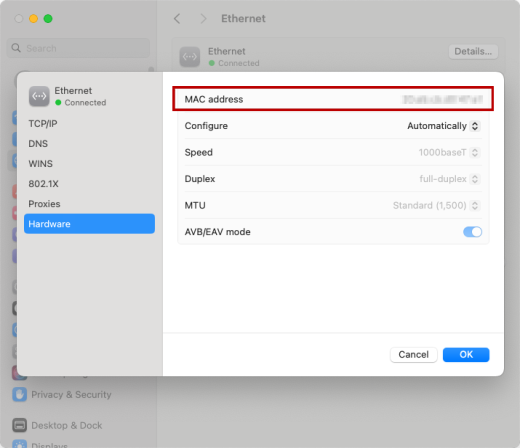
From the Apple menu, open System Settings and select Network.
2
3
Select the Hardware tab where you will find the MAC address listed.
4
Obtaining the Hostname
If you have been informed by your COMSOL representative that you need to run a license manager for your installation, then you also need the hostname. To get the hostname, launch the Terminal application and run the hostname command.
If your network administrator has set a fixed IP address for your computer, this IP Address can be used in place of the hostname. For more information on license manager installation, see License Manager Installation on macOS.
Obtaining the License File from a COMSOL Representative
Send the hostid information, as well as hostname, if applicable, in an email to your COMSOL representative, who will respond with an email including an attached license file (license.dat). Save this file to your local Home folder to ensure that the COMSOL installer will be able to read it during the installation process. Avoid protected folders such as Desktop, Documents, and Downloads.
Below is an example of the contents of a license.dat file for a Single User License on macOS. The license file is a text file, and this example shows that the licensed products are COMSOL Multiphysics, Particle Tracing Module, Subsurface Flow Module, and LiveLink™ for Excel®.
#------------------------------------------------------------------
# COMSOL 6.4 NSL License No: 1234567 Windows/Mac
# Visit www.comsol.com/install for latest installation instructions
#------------------------------------------------------------------
FEATURE SERIAL LMCOMSOL 6.4 permanent uncounted \
          VENDOR_STRING=C,18000100200 HOSTID=ANY sort=100 SN=1234567 \
          TS_OK SIGN=8045890A6FE4
FEATURE COMSOL LMCOMSOL 6.4 permanent uncounted HOSTID="70f2b13f4dfd \
          0116b8cc761a" PLATFORMS="i86_n x64_n i86_mac x64_mac" \
          SN=2076312 SIGN=E607EB680852
FEATURE PARTICLETRACING LMCOMSOL 6.4 permanent uncounted \
          HOSTID="70f1a12f4dfc 0026b9cc760a" PLATFORMS="i86_n x64_n \
          i86_mac x64_mac" SN=2076312 SIGN=3835733C6290
FEATURE SUBSURFACEFLOW LMCOMSOL 6.4 permanent uncounted \
          HOSTID="70f1a12f4dfc 0026b9cc760a" PLATFORMS="i86_n x64_n \
          i86_mac x64_mac" SN=2076312 SIGN=3A9BA162C9E4
FEATURE LLEXCEL LMCOMSOL 6.4 permanent uncounted HOSTID="70f1a12f4dfc \
          0026b9cc760a" PLATFORMS="i86_n x64_n i86_mac x64_mac" \
          SN=2076312 SIGN=EE9C11E44356
FEATURE COMSOLGUI LMCOMSOL 6.4 permanent uncounted \
          HOSTID="70f1a12f4dfc 0026b9cc760a" PLATFORMS="i86_n x64_n \
          i86_mac x64_mac" SN=2076312 SIGN=0D0A83382550
A Single User License file can normally not be edited or changed in any way by the user but has to be identical to the one sent to you by a COMSOL representative. However, if you were sent a license file that requires a license manager, then minor edits are required. For information on the type of license file required for installations using a license manager, see The License File.
Registering with COMSOL Access
Once you have saved your license file, follow these steps to register or login to COMSOL Access and to start the installation:
1
2
If you already created a COMSOL Access account, then you can associate the license file on the COMSOL Access page with your account under Manage Licenses at www.comsol.com/access/licenses.
3