COMSOL provides software updates that improve the software and correct issues. To check if an update is available, choose Check For Product Updates from the
Help menu. To check for updates automatically each time you start COMSOL Multiphysics, select the
Check for product updates at launch checkbox on the
Updates page in the
Preferences window.
If an update is available, an Update dialog appears. Click
Direct Download to download the update directly, or click
Product Information to open the COMSOL website where you can read about and download the update. When the update installation starts (close any running instance of COMSOL first) you see the following installation window:
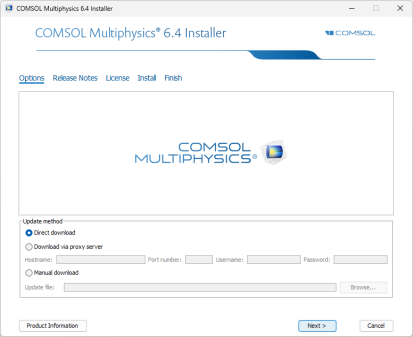
You can use Direct download (the default) or
Download via proxy server. If you download via a proxy server, specify the hostname and port number for the proxy and, if required, a username and password.
When selecting Manual download, you point to a DAT-file that you download from
www.comsol.com/product-update. This page contains details and options for manual download of the update.