Time-Limited and Hardware-Locked Applications
By writing a few lines of code you can make your application expire after a set date and lock the application to specific hardware.
The example MPH file used in this section is available in the Application Gallery at www.comsol.com/model/time-limited-and-hardware-locked-application-70151.
Password Protection
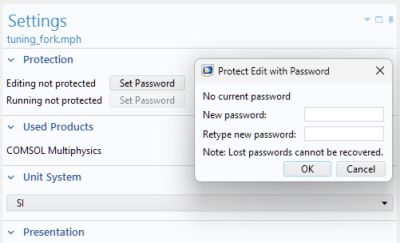
The settings of an application can in principle be read from the file system by a user, including method code. By making your application password protected for editing, the method code will no longer be readable. This setting is available from the root node in either the model tree or the application tree, as shown in the figure below.
Before implementing a time limit or hardware lock, as described below, make sure your application is password protected. Password protection for running the application is not required for this purpose.
Time-Limited Application
To have an application expire after a specific date, create a method as follows:
java.text.SimpleDateFormat f = new java.text.SimpleDateFormat("yyyy-MM-dd");
//java.text.SimpleDateFormat f = new java.text.SimpleDateFormat("MM/dd/yyyy");
 
ok = false;
try {
  java.util.Date d = f.parse(timeoutDate);
  long currentTime = timeStamp();
  long timeoutTime = d.getTime()+24*60*60*1000; // To allow running until the end         of the day
  if (currentTime < timeoutTime) {
    ok = true;
  }
}
catch (java.text.ParseException e) {
  debugLog("Failed to parse timeout date "+timeoutDate);
  debugLog(e.getMessage());
}
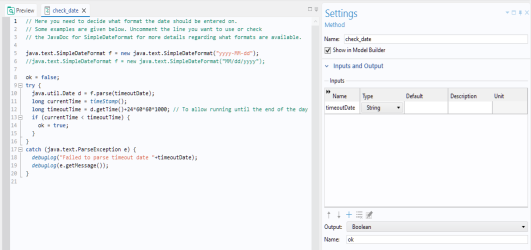
In this method, you need to decide on a date format. Two format examples are shown and you can uncomment the line corresponding to the format you would like to use. For more details on available formats, see the Java® documentation for SimpleDateFormat. This method has one string input argument, timoutDate, and one Boolean output argument, ok, as shown below.
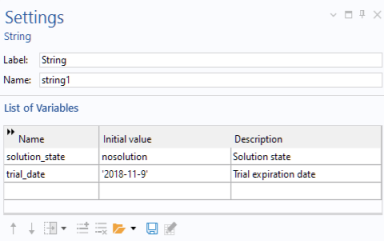
The expiration date is defined as a string variable, trial_date, in Declarations > String, as shown below.
Hardware-Locked Application
To lock an application to the MAC address of a specific network card on a computer, create a method as follows:
ok = false;
try {
  java.util.List < java.net.NetworkInterface > nis = java.util.Collections.list(java.net.NetworkInterface.getNetworkInterfaces());
  for (java.net.NetworkInterface ni : nis) {
    StringBuilder macString = new StringBuilder();
    byte[] macBytes = ni.getHardwareAddress();
    if (macBytes != null && macBytes.length > 0) {
      for (byte b : macBytes) {
        if (macString.length() > 0) {
          macString.append(":");
        }
        macString.append(String.format("%02x", b));
      }
      if (contains(allowedAddresses, macString.toString())) {
        ok = true;
        break;
      }
    }
  }
}
catch (java.net.SocketException e) {}
In order to check the MAC address when running an application, you need to enable Allow access to network sockets under Security in Preferences. However, for a compiled application, no security changes are needed.
This method has one array 1D string input argument, allowedAddresses, and one Boolean output argument, ok, as shown below.
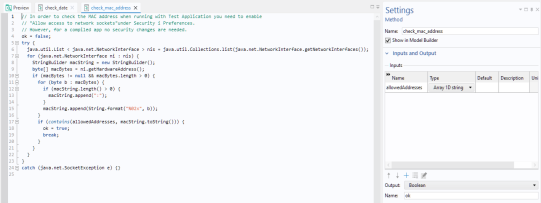
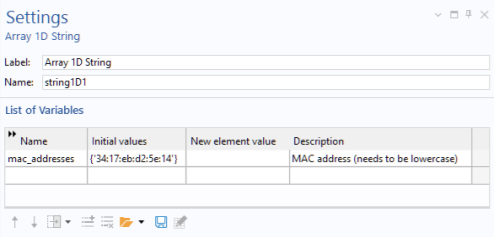
The MAC address is defined as a string array mac_addresses in Declarations > Array 1D String, as shown below.
Note that you can provide a list of MAC addresses to allow use on a computer with multiple network cards or multiple computers.
Checking For Allowed Date and Hardware
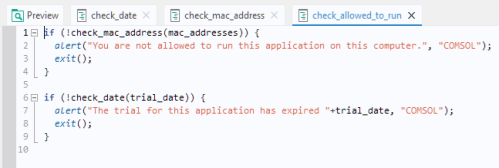
To check for both the MAC address and the date, create a method check_allowed_to_run as follows:
if (!check_mac_address(mac_addresses)) {
  alert("You are not allowed to run this application on this computer.",     "COMSOL");
  exit();
}
 
if (!check_date(trial_date)) {
  alert("The trial for this application has expired "+trial_date, "COMSOL");
  exit();
}
The figure below shows this method in the Method Editor.
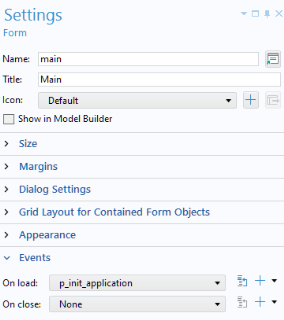
You can call this type of method at startup of the application, for example, as an On load event for the main form of the application. In the Tuning Fork example application, available in the Application Library of COMSOL Multiphysics, there is a method p_init_application that is run as an On load event for the main form. In this case, the method p_init_application can be edited as follows:
check_allowed_to_run();
 
if (model.sol("sol1").isEmpty()) {
  solution_state = "nosolution";
}
else {
  solution_state = "solutionexists";
}
 
zoomExtents("graphics1");
Notice the call to the method check_allowed_to_run in the first line. The figure below shows this method in the Method Editor.
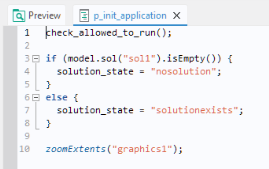
The method p_init_application is then called as an On load event. This is specified in the Settings window of the main form, as shown in the figure below.