Using Selections in Add-ins
In order to use selections in the Model Builder from an add-in, you leave the source settings empty when using a selection input form object at the time the add-in is created. Then you use a method to create an explicit selection in the current model and link it to the selection input object of the add-in.
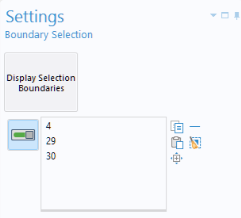
The figure below shows a simple add-in Boundary Selections used to demonstrate this functionality. It contains a form with a selection input object and a button. When the add-in is in focus, the user can click on one or more boundaries in the graphics window to create the selection. Clicking the button triggers an Alert with a dialog where the selected boundaries are listed.
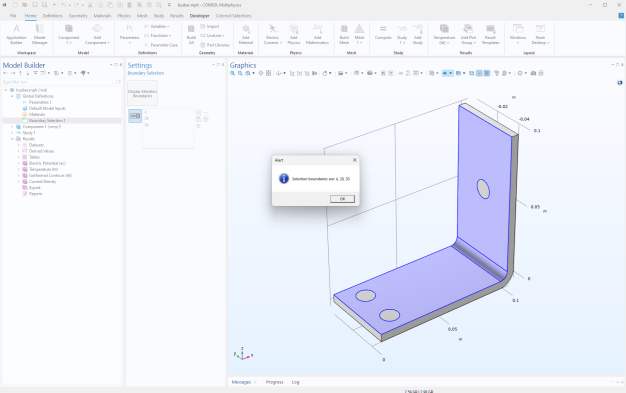
The figure below shows the form of the add-in as it appears when in use in a model:
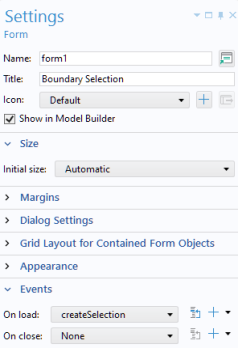
When the add-in Settings form is added to a model, an On load event is triggered that runs a method createSelection. The Settings form is shown in the figure below:
The code for the method createSelection is listed below:
// Create explicit selection in the model.
if (model.selection().index(selectionTag) < 0) {
SelectionFeature selection = model.selection().create(selectionTag, "Explicit");
selection.geom(2);
selectioninput1.set("source", selection);
}
// Activate the selection whenever the settings form is selected
selectioninput1.set("active", true);
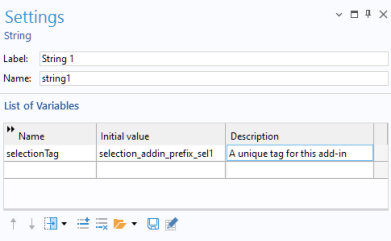
The variable selectionTag stores a unique identifier for the Model Builder Explicit selection feature. This string needs to be different enough not to accidentally collide with the user’s selection features, used for other purposes, in the Model Builder. The figure below shows the declaration of this String variable.
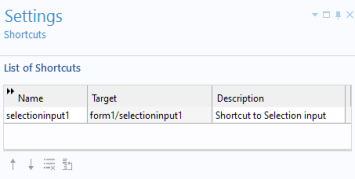
In addition, a shortcut selectioninput1 is used for the selection input object, as shown in the figure below.
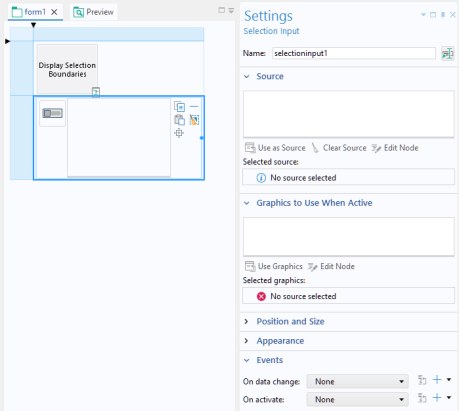
The figure below shows the Settings window for the Selection Input form object selectioninput1. Note the empty selection of the Source and Graphics to Use When Active. These settings are set by the method createSelection.
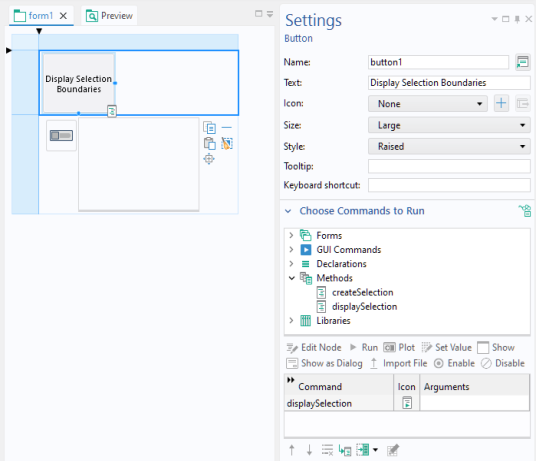
The figure below shows the Settings window for the Button form object button1.
When this button is clicked, a method displaySelection is run. The code for this method is shown below.
SelectionFeature selection = model.selection(selectionTag);
alert("Selection boundaries are: "+concat(", ", toString(selection.entities())));
For your own add-in, you can replace this code with any number of actions that accepts an explicit selection as an input. For example, you can add the following lines of code to the end of the method displaySelection in order to add a variable a, local to this explicit selection, having the value 5.
model.component("comp1").variable().create("var1");
model.component("comp1").variable("var1").selection().geom("geom1", 2);
model.component("comp1").variable("var1").set("a", "5");
model.component("comp1").variable("var1").selection().named(selectionTag);
This example is part of a collection available for download:
www.comsol.com/model/application-programming-guide-examples-140771
The relevant files for this example are:
For more information on creating and using add-ins, see the book Introduction to the Application Builder.