In the Settings window for input fields, the section for
Data Validation has a subsection
Numerical validation with settings that allow you to validate user inputs with respect to values. The figure below shows an example of settings for entering a radius.
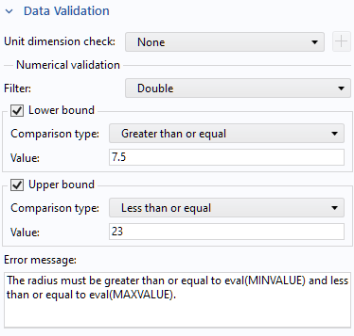
The Filter options, the
Lower bound and
Upper bound settings are only visible if the selection in the
Unit dimension check combo box is set to one of
None,
Append unit to number, or
Append unit from unit set.
The Value input fields for
Lower bound and
Upper bound allow you to use global parameters or scalar declaration variables. Using scalar declaration variables in this field supports the same type of data conversions as when using declaration names as a method input argument in a command sequence. This means that scalar
Integer and
Double declaration variable will always work and scalar
String declarations will work if they can be converted to a
Double.
Using declaration variable names or global parameters in the Value input fields can only be used when
Unit dimension check is set to
Append unit to number or
Append unit from unit set. In that case, the bounds are checked based on the numerical value entered by the user in the input field. In a
Value input field, you cannot use expressions in terms of declared variables but only a single declaration name. If a parameter exists with the same name as a declaration variable, then the value of the global parameter will be used.
The scope of declaration names used in a Value field is limited to the parent form of the input field.
The Error message text field allows you to write a customized error message to be shown when the input values are out of bounds. The error message text can contain
eval(variable), which is also allowed in the title for plot groups in the Model Builder. In addition, the
Tooltip of the input field allows use of
eval(variable). The
variable can be the name of any global parameter or scalar declaration. If a parameter and a declaration with the same name exists, then the parameter is used. In addition to parameter and declaration names the special strings
MINVALUE and
MAXVALUE can be passed to
eval and will return the value entered as lower bound or upper bound.
When using eval for a parameter, it will return the evaluated value of the parameter using the same unit that is used to enter the bounds in the
Value input field. For a scalar declaration the string value of the declaration is returned which will be true or false for a boolean declaration.
You can create a method for an On data change event directly from the
Events section of an input field, as shown in the figure below.
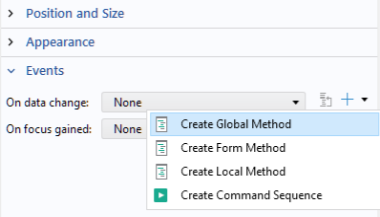
In such a case, the method will automatically get a scalar String input argument with the name
newValue, as shown in the figure below.
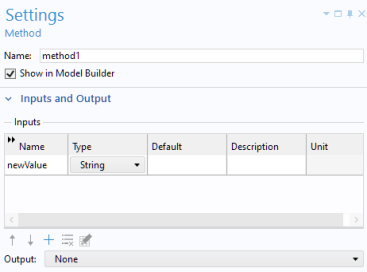
The variable newValue will get the new value entered in the input field by the user of the app.
A DataSource object has the methods
getBoolean,
getBooleanArray,
getBooleanMatrix,
getDouble, and so on to allow accessing the value stored in the
DataSource object no matter what type it has. It also has the corresponding
set methods to allow setting a value. For more information, see
Data Source and Declaration.
The Value object is a read-only version of the
DataSource object with only the
get methods.
For methods that are called from events, you can access the properties formTag and
formObjectTag for the form object that triggered the event. This way, you can access the form object from the event method using the syntax:
To accomplish storing of the values when the dialog is set to work on a copy, corresponding to the first option above, and store the values on request, the Settings window for a button object has a checkbox
Store changes in the section
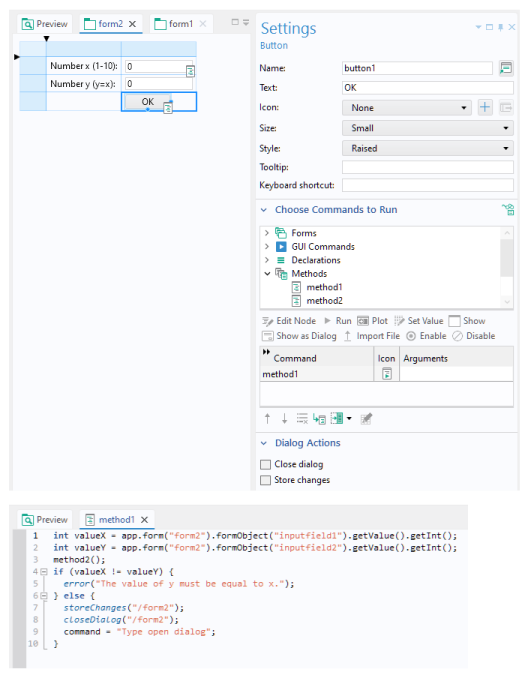
Dialog Actions, as shown in the figure below. When this checkbox is selected, the values in the dialog are stored from the copy used by the dialog to the actual values after the command sequence specified for the button has been run. Part of this command sequence can include a method that performs validation of the data that the user has entered in the dialog. The figure below shows an example of this scenario, with a method
validation, for an
OK button used in a dialog.
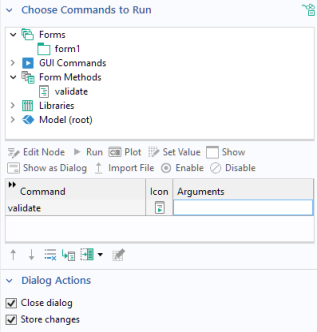
However, this validation approach will not work. This is due to the fact that when the dialog is set to Store changes on request, the values have not yet been stored when the
validation method runs since dialog actions such as
Store changes are performed after the command sequence for the button has been run. This means that the
validation code cannot access the new values to perform a validation on them.
This call will return a Value object, the same type of object described earlier and used for calls to
event.getOldValue() and
event.getNewValue(). With this type of access to the current value in the form object, a data validation can be performed. The following form object types support the
getValue method.
If the user has clicked OK in a dialog and the data validation fails, you typically want to show an error dialog and then leave the dialog open to allow the user to correct the input fields that failed validation. This not possible to achieve using a direct approach since if the
OK button is set to have
Store changes as a
Dialog Action the storing of the data will always be performed after the command sequence, defined in the
Settings window of the
OK button, has been run.
When using the technique described above, you can clear the Store changes and
Close dialog checkboxes, in the
Dialog Actions section for the
OK button and instead call
storeChanges and
closeDialog as part of the flow in the validation method if the validation passes.
Having a way to programmatically store changes also helps with the case where the dialog contains a button that also performs something when closing the dialog, for example, a Compute button. A validation may then be followed by, for example, a
compute method. In order to get this
compute method to work on the new values entered in the dialog,
storeChanges can be called after the data validation has been performed but before the
compute method is called.
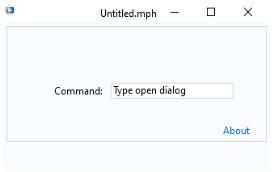
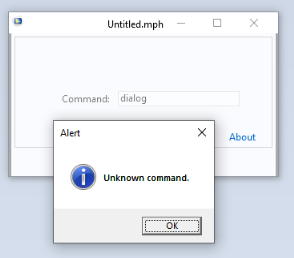
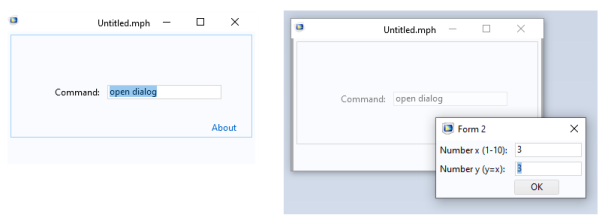
and the string value for the Command is reset to the default
Type open dialog.
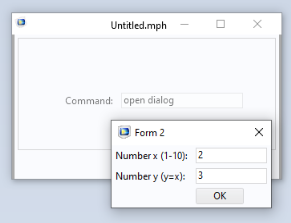
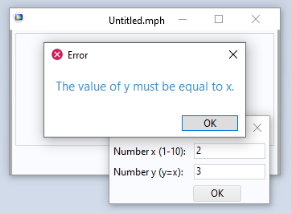
The dialog expects an integer between 1 and
10, in the first input field. In addition, it expects the value in the second input field to be identical to the value in first input field. If all these criteria is fulfilled, no error message is shown and the app starts from the beginning showing the string
Type open dialog in the main form.
The data validation functionality in this demonstration app is implemented using an On data change event for the
Command input field in the main form
form1, as shown in the figure below.
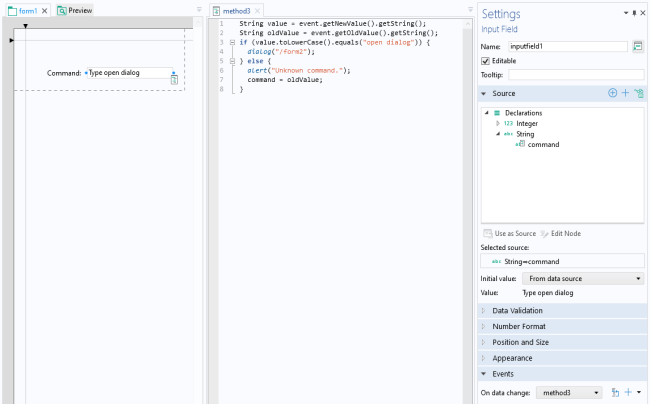
The code in method3 shows the user of
event.getNewValue and
event.getOldValue, as shown below:
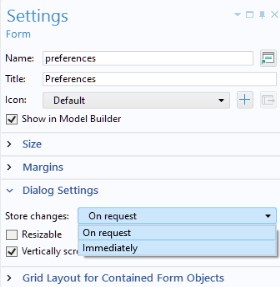
The dialog form2 has
Store changes set to
On request, as shown in the figure below.
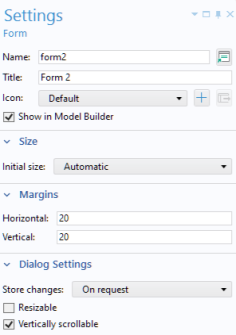
In the dialog, the value of the variable x is validated in the
On data Change event of the input field with label
Number x (1-10) and also when clicking the
OK button. The
y value is only validated when clicking the
OK button. The data validations are implemented using the form object access method
getValue. The
OK button makes use of the
storeChanges method. The figure below shows the method run for the
On data change event for the input field with label
Number x (1-10).
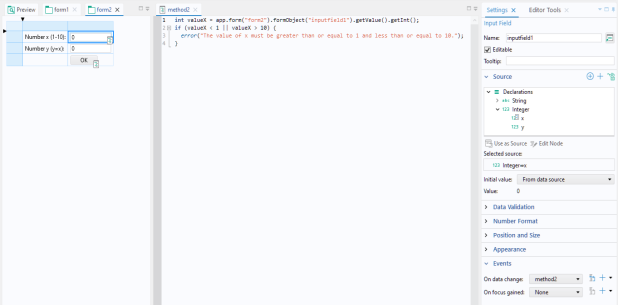
The OK button calls
method1 for the
On data Change event, as shown in the figures below.