GUI-Related Methods
The graphical user interface (GUI) related methods are used for displaying dialogs with messages, editing form objects and user interface content, getting run-time properties of the application user interface, and running methods.
Shows the form with the given name in the current main window. In a single window application, the form replaces the current one. In an application with subwindows, the form must exist in the main window layout. If not, it will not be opened. Showing a form that is already open will only activate the form.
Closes the form with the given name. Closing forms is only possible in applications using subwindows. This method is not applicable for single window applications.
Stops execution and opens an error dialog with the given message including the underlying cause of class Throwable, the general Java exception class, or one of its subclasses, such as RuntimeException. This can be used to “wrap” native COMSOL Multiphysics error messages with custom error messages.
Sends a message arg to the message log. For an application this requires that a message log is added to the application user interface. The input argument arg can be a scalar, 1D array, or 2D array of the types string, double, int, or Boolean.
Shows the values from the tableFeature in the resultsTable form object.
Returns an object of the type ChoiceList, representing a choice list node under the declarations branch. The type ChoiceList has methods that make it easier to change the matrix value with respect to changing and accessing values and display names individually.
Sets the enable state for the menu bar item specified by the name or name path (from menu bar) in the first argument.
Goes to a standard view in main graphics window. The parameter name is one of the view orientation strings in the following list: "xy","xz","yx","yz","zx","zy".
Alerts and Messages
The methods alert, confirm, and request display a dialog with a text string and optional user input. The following example uses confirm to ask the user if a direct or an iterative solver should be used in an application. Based on the answer, the alert function is then used to show the estimated memory requirement for the selected solver type in a message dialog:
String answer = confirm("Which solver do you want to use?", "Solver Selection","Direct", "Iterative");
if (answer.equals("Direct")) {
  alert("Using the direct solver will require about 4GB of memory when solving.");
} else {
  alert("Using the iterative solver will require about 2GB of memory when solving.");
}
Example Code
The following code changes the camera zoom angle and updates the graphics for each change.
useView(model.view("view1"), "/form1/graphics1");
for (int i = 0; i < 25; i++) {
  sleep(2000);
  model.view("view1").camera().set("zoomanglefull", 12-i*5.0/25);
  useGraphics(model.geom("geom1"), "/form1/graphics1");
}
This line of code displays plot group 5 (pg5) in the graphics object graphics1 in the form with the name Temperature:
useGraphics(model.result("pg5"), "/Temperature/graphics1");
The code below displays the mesh in the model tree node mesh1 in the graphics object graphics1 contained in the card of a card stack. The second line runs a zoom extents command to ensure proper visualization of the mesh.
useGraphics(model.mesh("mesh1"), "/mesh/cardstack1/card1/graphics1");
zoomExtents("/mesh/cardstack1/card1/graphics1");
To clear the contents of a graphics object use a call such as
useGraphics(null, "/form1/graphics1");
The code below displays a request dialog that lets the user type in a filename for an HTML report. If the user has typed a filename, then a report is generated.
String answerh = request("Enter filename","Filename", "Untitled.html");
if (answerh != null) {
  model.result().report("rpt1").set("format","html");
  model.result().report("rpt1").set("filename","user:///"+answerh);
  model.result().report("rpt1").run();
}
The code below is similar to the code above, but in this case the report is saved in Microsoft® Word® format (.docx).
String answerw = request("Enter filename","Filename", "Untitled.docx");
if (answerw != null) {
  model.result().report("rpt2").set("format","docx");
  model.result().report("rpt2").set("filename","user:///"+answerw);
  model.result().report("rpt2").run();
}
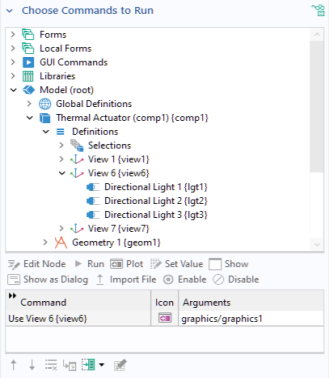
This line of code sets the view of the graphics object form1/graphics1 to View 5, as defined in the model tree:
useView(model.view("view5"), "form1/graphics1");
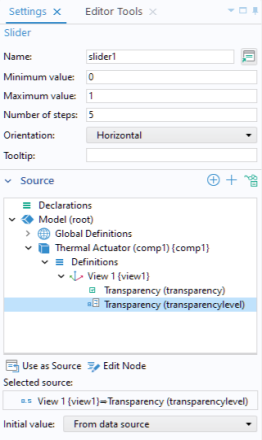
You can use Data Access in combination with Editor Tools to create a slider or an input field that sets the transparency level (alpha) of a plot group. The figure below shows a Settings window of a slider with the transparency level as Source.
In this case you need to create a method for updating the view that is called to handle an event from the slider or form object. In the example above, the slider uses a Local method defined in the Events section. This method contains one line of code that updates the view:
useView(getView("/form1/graphics1"), "/form1/graphics1");
Note that different transparency levels are not supported when accessing an application from a browser using COMSOL Server.
Note that you can also set a view from the command sequence of, for example, a button: select a view subnode under the Views node in the editor tree and click the Plot button under the tree.
To go to one of the standard views in the main Graphics window, for example in an add-in, you can use:
goToView("xy");
In an application you can similarly use one of:
goToView("xz", "form1/graphics1");
goToView("yz", app.form("form1").formObject("graphics1"));
to go to the graphics object graphics1 in the form form1.
This line of code sets the URL source of the form object webpage1 to the COMSOL web page:
setWebPageSource("/form1/webpage1", "www.comsol.com");
This line of code forms a string containing the screen width and height:
screenSize = toString(getScreenWidth()) + "-by-" +  toString(getScreenHeight());
You can present the string with an input field or a data display object using this string as a source (the string screenSize needs to be declared first).