Shortcuts
Form objects and other user interface components are referenced in methods by using a certain syntax. For example, using the default naming scheme form3/button5 refers to a button with name button5 in form3 and form2/graphics3 refers to a graphics object with name graphics3 in form2. You can also change the default names of forms and form objects. For example, if form1 is your main form then you can change its name to main.
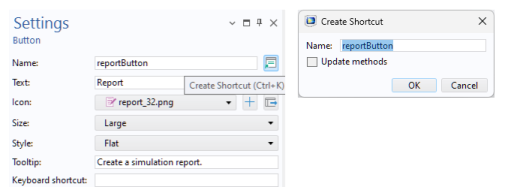
To simplify referencing form objects as well as menu, ribbon, and toolbar items by name, you can create shortcuts with a custom name. In the Settings window of an object or item, click the button to the right of the Name field and type the name of your choice.
To create or edit a shortcut, you can also use the keyboard shortcut Ctrl+K.
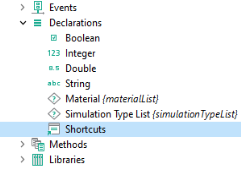
All shortcuts that you create are made available in a Shortcuts node under Declarations in the application tree.
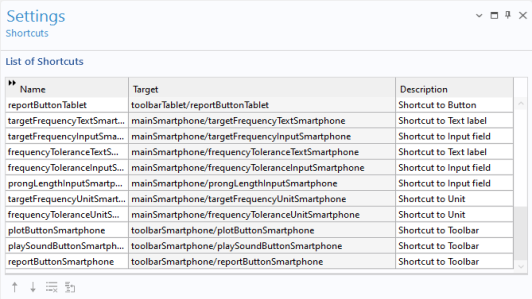
In the Settings window for Shortcuts shown below, a number of shortcuts were created for a various form objects.
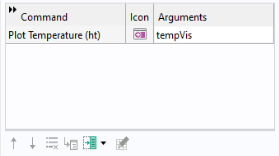
The shortcuts can be referenced in other form objects or in code in the Method Editor. The example below shows a shortcut tempVis used as an input argument to a temperature plot.
Shortcuts are automatically updated when objects are renamed, moved, copied, and duplicated. They are available in application methods as read-only Java® variables, similar to string, integer, double, and Boolean declarations.
Using shortcuts is recommended because it avoids the need to update methods when the structure of the application user interface changes.
Shortcuts can also be created for most objects in the model builder tree.
Example Code
If the application contains a button named button1 in a form named form1, and the button has a shortcut named b1, the following two ways to change the button text to red are equivalent:
b1.set("foreground", "red");
app.form("form1").formObject("button1").set("foreground", "red");