Recording Code
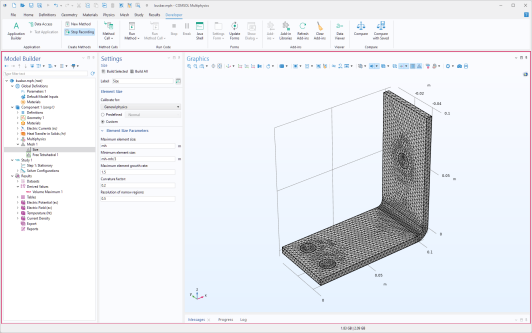
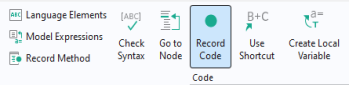
Click the Record Code button in the Code section of the Method Editor ribbon to record a sequence of operations that you perform using the model tree, as shown in the figure below.
Certain operations in the application tree can also be recorded, for example, code that changes the color of a text label in a running application may be generated.
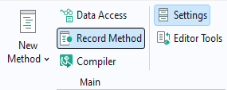
To record a new method, click the Record Method button in the Main section of the Home tab.
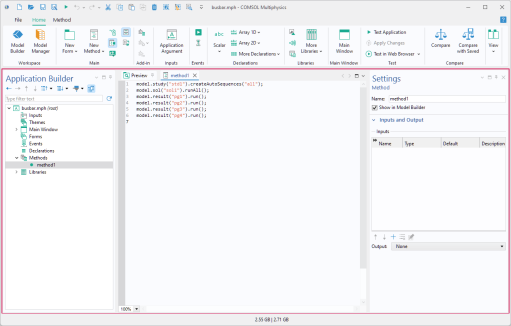
While recording code, the COMSOL Desktop windows are surrounded by a red frame:
To stop recording code, click one of the Stop Recording buttons in the ribbon of either the Model Builder or the Application Builder.
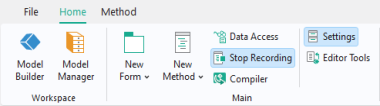
By using Data Access, you selectively access various settings in the Model Builder, from the Application Builder. For example, you can set the values of the Heat transfer coefficient and the External temperature properties of the busbar tutorial model used in the documents Introduction to COMSOL Multiphysics and Introduction to the Application Builder.
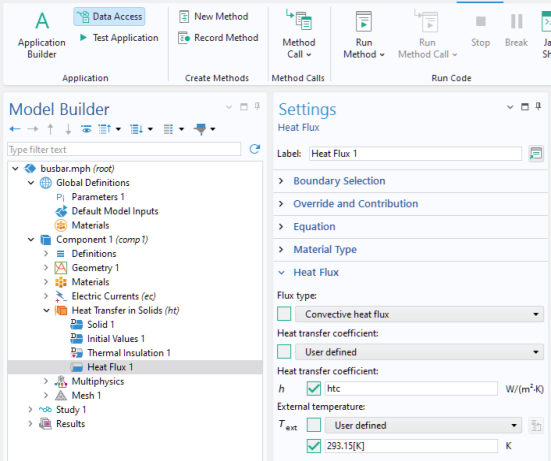
To generate similar code using Record Code (Data Access is not used when recording code), follow these steps:
In the Model Builder window, in the Developer tab, click Record Method, or with the Method Editor open, click Record Code.
Change the value of the Heat transfer coefficient to 5.
Change the value of the External temperature to 300[K].
Click Stop Recording.
The resulting code is listed below:
model.component("comp1").physics("ht").feature("hf1").set("h", 5);
model.component("comp1").physics("ht").feature("hf1").set("Text", "300[K]");
To generate code corresponding to changes to the application object, use Record Code or Record Method, then go to the Form Editor, and, for example, change the appearance of a form object. The following code corresponds to changing the color of a text label from the default Inherit to Blue:
app.form("form1").formObject("textlabel1").set("foreground", "blue");
Built-in methods that changes the application object are only available when running applications and not when running methods from the Model Builder.
Use the tools for recording code to quickly learn how to interact with the model object or the application object. The autogenerated code shows you the names of properties, parameters, and variables. Use strings and string-number conversions to assign new parameter values in model properties. By using Data Access while recording, you can, for example, extract a parameter value using get, process its value in a method, and save it back into the model object using set. For more information on Data Access, see the Introduction to the Application Builder.