|
•
|
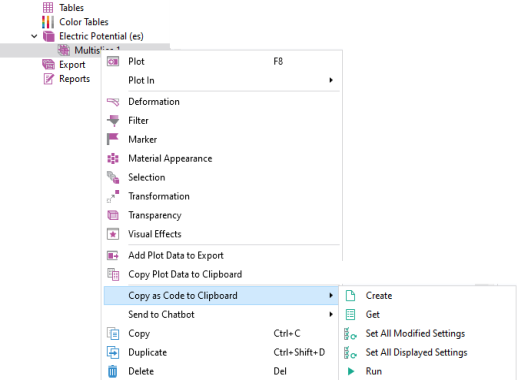
 Create, to generate a code snippet to create the corresponding object. Create, to generate a code snippet to create the corresponding object. |
|
•
|
 Get, to generate a code snippet to access the corresponding object. Get, to generate a code snippet to access the corresponding object. |
|
•
|
 Set All Modified Settings, to generate a code snippet to set the nondefault properties in the corresponding object. Set All Modified Settings, to generate a code snippet to set the nondefault properties in the corresponding object. |
|
•
|
 Set All Displayed Settings, to generate a code snippet to set all available properties in the corresponding object. Set All Displayed Settings, to generate a code snippet to set all available properties in the corresponding object. |
|
•
|
 Run, to generate a code snippet to run the corresponding sequence. Run, to generate a code snippet to run the corresponding sequence. |
 |
Copy as Code to Clipboard > Set All Displayed Settings is not supported for features that are specific to the Application Builder, such as forms and declarations.
|
|
•
|
 Evaluate real scalar, to evaluate a real scalar value. Evaluate real scalar, to evaluate a real scalar value. |
|
•
|
 Evaluate real matrix, to evaluate the values of a real matrix. Evaluate real matrix, to evaluate the values of a real matrix. |
|
•
|
 Evaluate imaginary scalar, to evaluate an imaginary scalar value. Evaluate imaginary scalar, to evaluate an imaginary scalar value. |
|
•
|
 Evaluate imaginary matrix, to evaluate the value of an imaginary matrix. Evaluate imaginary matrix, to evaluate the value of an imaginary matrix. |
 |
Copy as Code to Clipboard > Set All Modified Settings only considers properties that have been changed directly in the feature’s settings. In particular, it does not consider properties set by inserting a geometry sequence. When available, you can instead choose Set All Displayed Settings from the same menu to get code for setting all properties for the feature.
|
 |
The actions Set All Modified Settings and Set All Displayed Settings can sometimes generate different but equivalent code for the same setting.
|