A File Import object is used to display a file browser with an associated input field for browsing to a file or entering its path and name. It is used to enable file import by the user of an application at run time, when the file is not available in the application beforehand. You can directly link a
File Import object to a file
Import node in the model tree; for example, a CAD
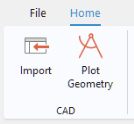
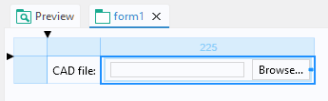
Import node. Consider an application where a CAD file can be selected and imported at run time, as shown by the figure below.

The corresponding File Import object is shown in the figure below.
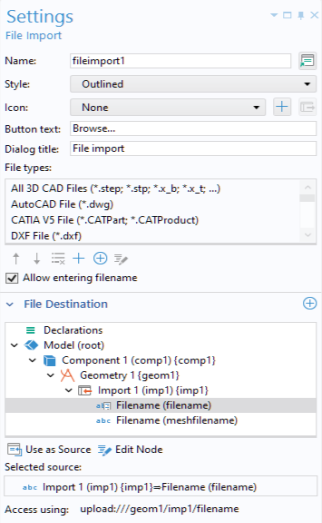
The Settings window for the
File Import object has a section
File Destination. In this section, you can select any tree node that allows a filename to be input. This is shown in the figure below, where the
Filename for the
Import node is selected.
If you do not wish to use a File Import object, you can directly reference a
Filename from a button or an item in a menu, ribbon, or toolbar, or alternatively create a method that calls the built-in method
importFile as an event, for example
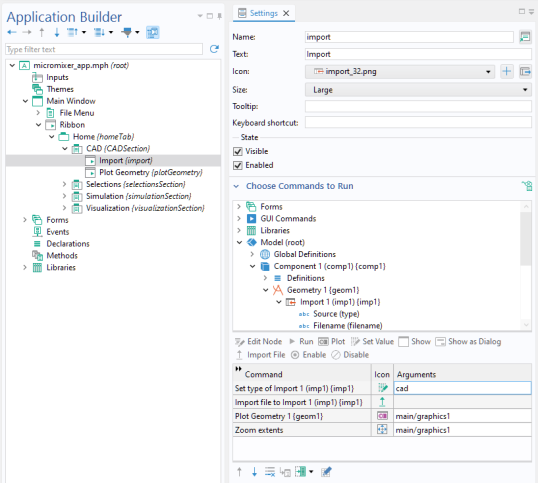
In the Settings window above, the command
Import file to Import 1 will open a file browser for the user to select a file, as shown in the figure below.
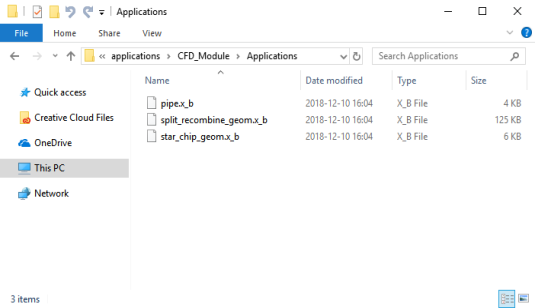
The preceding command Set Type of Import allows you to filter the file extensions displayed in the file browser. The available arguments are:
file,
mesh,
native,
cad, and
ecad.
Continuing the example of the previous section, assume that we click Convert to New Method in the
Settings window. The corresponding lines of code show how CAD import can be accomplished from a method:
The first line illustrates using the built-in method importFile. For more information on the method
importFile and other methods for file handling, see
File Methods and the
Application Programming Guide.
At the bottom of the Settings window of a
File Import object, you can see which file scheme syntax to use to access an imported file from a method (next to
Access using:). The figure below shows an example where a
File Destination and
Filename are used.
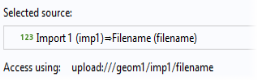
The file scheme syntax, upload:///geom1/imp1/filename, needs to be used whenever accessing this file.
As an alternative, you can use a File declaration under the
Declarations node. (However,
File declarations are primarily used for file import from method code.) In this case, the file chosen by the user can be referenced in a form object or method using the syntax
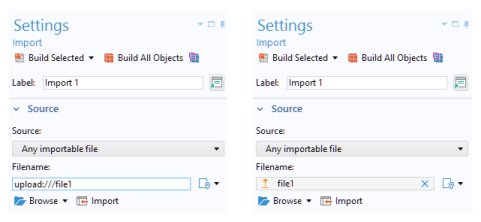
upload:///file1,
upload:///file2, and so on. The filename handle (
file1,
file2, and so on.) can then be used to reference an actual filename picked by the user at run time. See also
File.
When you enter upload:///file1, it is automatically replaced with a reference to the file location as
file1. If you use the upload file scheme, the text field converts the entry into a link. You can access the underlying source by selecting
Show Location in the
Auxiliary Data window.
The figure below shows the settings window of the corresponding File Import object. The object links to the
Filename property of an interpolation function, defined in the embedded model. In general, each interpolation function added to a model will have the
Filename property available for use in an app.
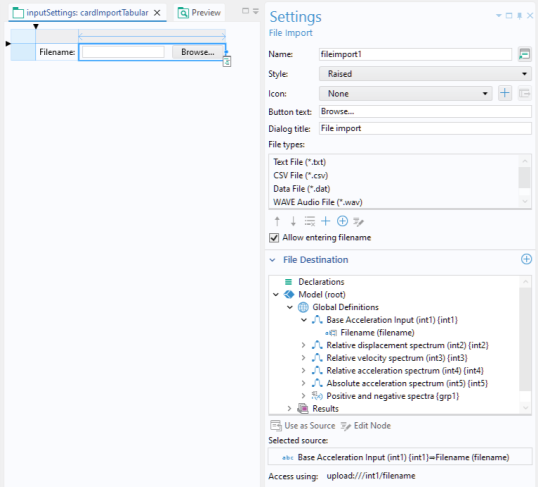
In this application, the File types table specifies that only certain file types are allowed.
More information on file import can be found in the Application Programming Guide. There you will, for example, find information on customized parsing of arbitrary file types.
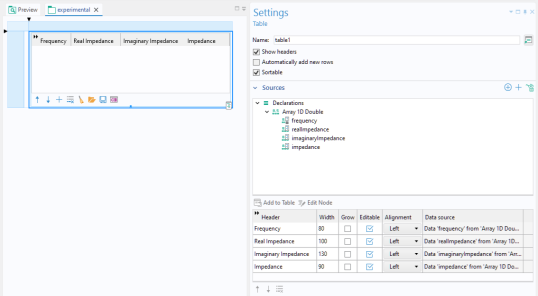
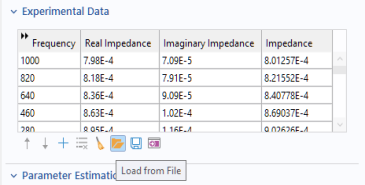
The Load from File button in the toolbar below the table can be used to load data from file. The figure below shows the corresponding
Table settings window. The imported data is here stored in a set of 1D double arrays, one per column.