In general, you cannot read and write files to local directories when running applications with a web browser or the COMSOL Client for Windows®. The application and its methods are run on the server and, mainly for cybersecurity reasons, have no knowledge of the client file system (where the web browser or COMSOL Client is run).
A File Import object can be used to ask the user for a file, for example. The user then browses to a file on the client file system, which is then uploaded to the COMSOL Server file system and becomes available to the application and its methods. This can be used, for example, to provide a CAD file or an experimental data file from the user at run time ands is covered in the section
File Import.
In the editor tree used in a command sequence, the GUI Commands>File Commands folder contains commands to save and load applications and files, as well as exiting an application.
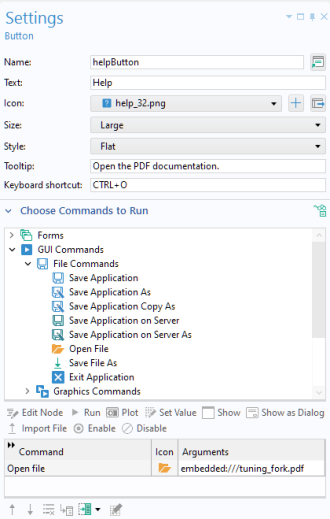
The command
Open File will pick any file from the server that was produced by a method or the model, or embedded with the application. The file will be opened using the associated application on the client. This can be used, for example, to open a PDF file in the client file system, or show a text file or an image exported from the model on the client side. In the figure above, an
Open File command is used to open the PDF documentation for an application. The corresponding PDF file is embedded in the application by being stored in the
Libraries >
Files node. Files located there are referenced using the
embedded:/// file scheme syntax described in the next section,
File Scheme Syntax.
To save a file, use the command Save File As, which is similar to
Open File. When using COMSOL Server, it will take any file from the server file system and display a
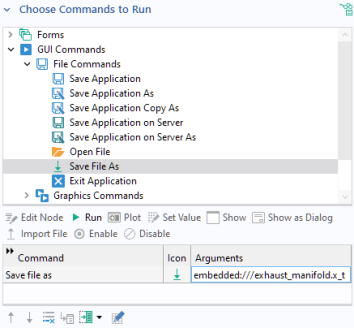
Save As dialog to the user where the user can browse to a client location to save the file. This is similar to downloading files from a link within a web browser. In the figure below, a
Save File As command is used to save a CAD model that is stored in the
Libraries >
Files node.
The Save Application and
Save Application As commands are available for use in the command sequence for certain form objects. The
Save Application As command will display a
Save As dialog where the user can specify a client path where the entire application will be saved.
Similarly, the Save Application on Server and
Save Application on Server As commands are available to save the entire application on the server file system. For information on the corresponding built-in methods, see
GUI Command Methods.
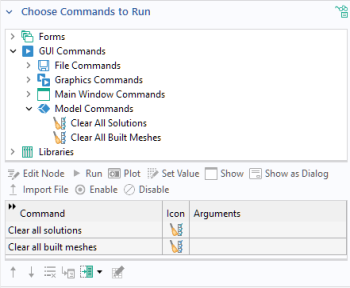
In the editor tree used in a command sequence, the Model Commands folder contains two commands:
Clear all solutions and
Clear all meshes. Use these commands to make the MPH file size smaller before saving an application by erasing solution and mesh data, respectively.