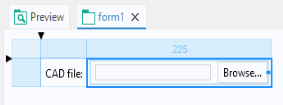
A File Import object is used to display a file browser with an associated input field for browsing to a file or entering its path and name. It is used to enable file import by the user of an application at run time, when the file is not available in the application beforehand.
The corresponding File Import object is shown in the figure below.
The Settings window for the
File Import object has a section
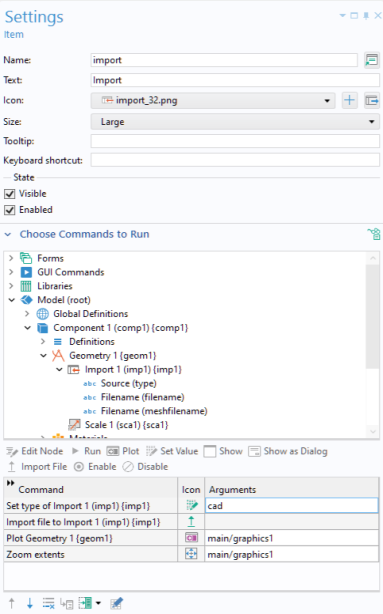
File Destination. In this section, you can select any tree node that allows a filename as input. This is shown in the figure below, where the
Filename for a geometry
Import node is selected.
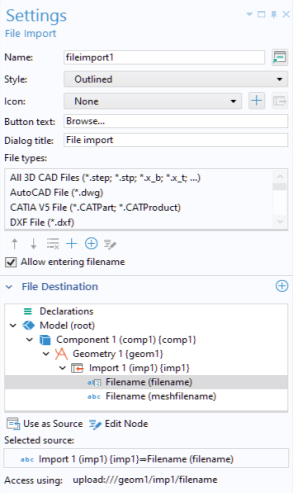
In this application, the File types table specifies that only CAD files are allowed. You can further control which
File types are allowed by clicking the
Add and
Delete buttons below the list of
File types. Clicking the
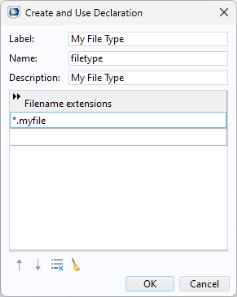
Add button displays the dialog shown below:
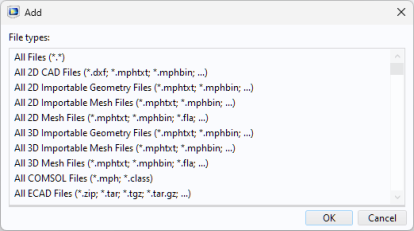
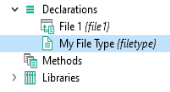
By clicking the Create New File Type and Use It you can use your own file format. (This requires that you write method code for reading your own file format.)
A File Import object can also reference a
File declaration. For more information, see
File. For more information on file handling in general, see
Appendix C — File Scheme Syntax.
The built-in method that corresponds to the command Import file is
importFile. For example, for importing an image you can use: