A Form Collection object consists of several forms, or panes, presented in a main form. In this example, there are four forms that appear as tabs in a single main window.
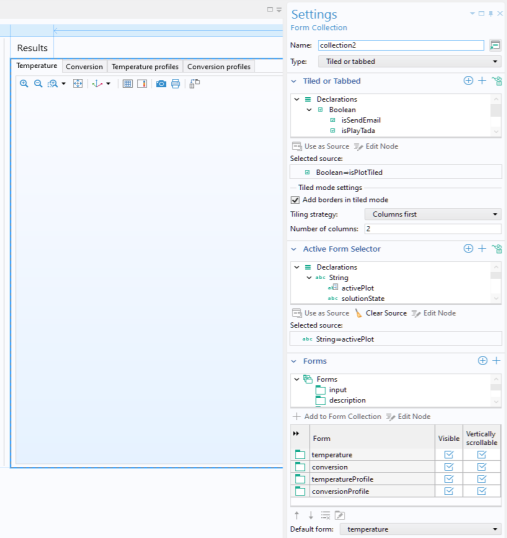
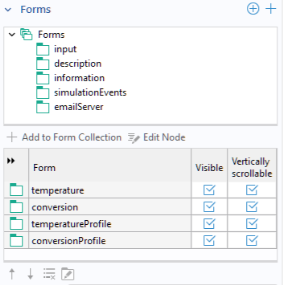
In the Forms section you can select which forms to display in the
Form Collection. These will be displayed in the app in the order they appear in the list. You can change the order by clicking the
Move Up and
Move Down buttons.
The Default form list specifies which form to be shown by default. This setting is not available for the option
Sections.
In the table below the tree in the Forms section, you can use checkboxes to select which forms should be
Visible,
Collapsible,
Vertically Scrollable, or
Expanded. The availability of these options depends on the
Type, as shown in the following table:
When Vertically scrollable is cleared, the form will never have a vertical scrollbar. Instead, scrollbars will appear on form objects inside the form, if possible.
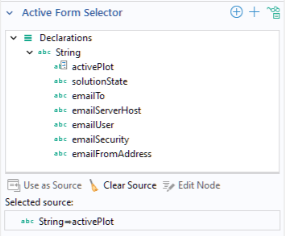
If you change the value of the form selector activePlot in the above example, in a method that will be run at some point (a button method, for example), then the form with the new value will be activated, as shown in the example below.
For a form collection with the Type set to
Sections, the
Active Form Selector has no effect. Using an
Active Form Selector is optional and is only needed if you wish to control which tab is active by some method other than clicking its tab. To remove a string variable used as an
Active Form Selector, click the
Clear source toolbar button under the tree.
The Tiled or tabbed option displays the forms in one of two ways depending on the value of a Boolean variable used as source in a
Tiled or Tabbed section at the top of the
Settings window.
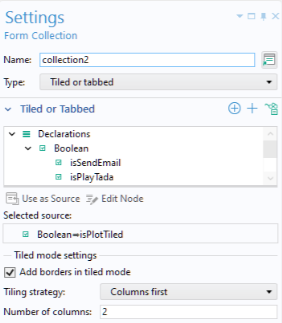
The tabbed mode is identical to a form collection with the Type set to
Tabs. In tiled mode, all the forms are shown simultaneously in a grid. The layout for the tiled mode can be controlled by the settings in the subsection
Tiled mode settings.