Progress Bar
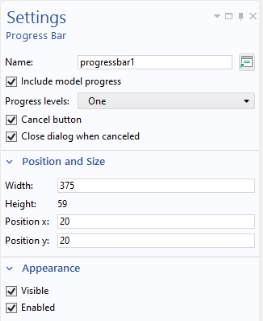
A Progress Bar object displays a customized progress bar, or set of progress bars, based on a value that is updated by a method. Use a progress bar to provide feedback on the remaining run time for an application. The figure below shows the Settings window of a progress bar object with one progress level.
Note that the built-in progress bar that is visible in the status bar of an application is controlled by the Settings window of the Main Window node. By default, the built-in progress bar shows the progress of the built-in COMSOL Multiphysics core algorithms, such as geometry operations, meshing, and solving. By using the setProgress method, you can customize the information shown in the built-in progress bar. For more information, see Progress Methods and the Application Programming Guide.
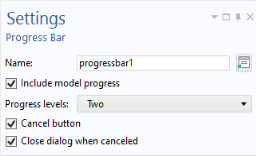
The figure below shows the Settings window of a progress bar object with two progress levels.
In this example, the progress bar object is part of a form progressform used to present a two-level progress bar and a message log.
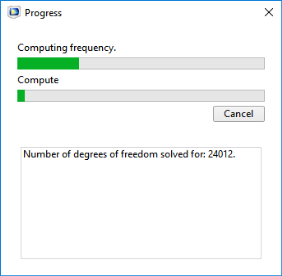
The figure below shows the corresponding progress dialog in the running application.
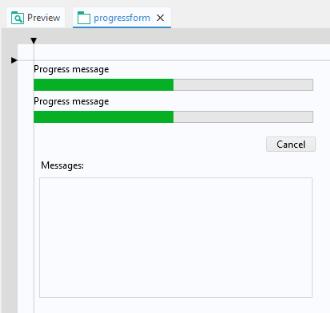
The figure below shows the form progressform.
The code segments below show typical built-in methods used to update the progress bar and the message log.
// show progress dialog:
dialog("progressform");
setProgressBar("/progressform/progress1", 0, "Computing prong length.");
 
// code for iterations goes here:
lastProgress = 20;
// ...
 
// update message log:
message("Iteration Number: " + k);
message("Frequency: " + Math.round(fq*100)/100.00);
message("Length: " + Math.round(L1*100)/100.00);
 
// update progress bar:
setProgressInterval("Computing frequency", lastProgress, k*100/MAXITERATIONS);
// more code goes here:
// ...
 
// finished iterating:
setProgressBar("/progressform/progress1", 100);
closeDialog("progressform");
In the example above, the central functionality for updating the two levels of progress bars lies in the call
setProgressInterval("Computing frequency", lastProgress, k*100/MAXITERATIONS).
For detailed information on the built-in methods and their syntax, see Progress Methods and the Application Programming Guide.