Use an Image form object to add an image to a form. An image object is different from a graphics object in that an image object is not interactive. Choose an image file from one of the library images, accessible from a drop-down list, or by clicking the
Add Image to Library and Use Here button to select a file from the local file system. The figure below shows the
Settings window for an image object referencing the image
Image.png.
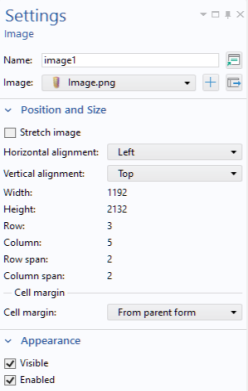
While you can change the x- and
y-position of the image, the width and height settings are determined by the image file. However, if you use the grid layout mode, then there is an additional setting
Stretch image which, if activated, will automatically scale the image to fill the available grid cell space.

You can paste images from the clipboard to a form window by using Ctrl+V. For example, you can copy and paste images from the PowerPoint
® slide presentation software. Such images will be added automatically to the
Images library and embedded in the application. The names for pasted images are automatically set to:
pasted_image_1.png,
pasted_image_2.png, and so on.