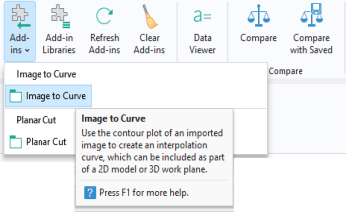
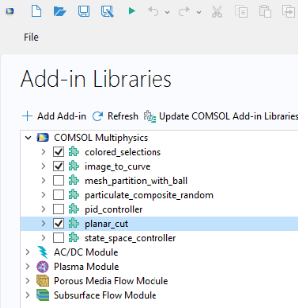
To use an add-in from the Add-in Libraries, you first need to enable it. In the
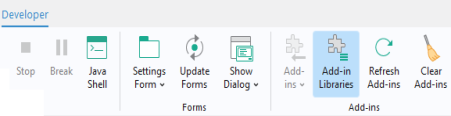
Developer tab in the Model Builder, click
Add-in Libraries.
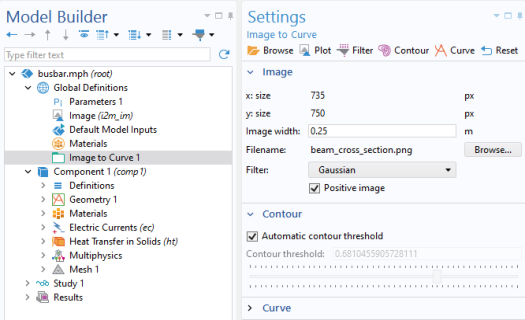
The figure below shows the Settings Form for one of the built-in add-ins.
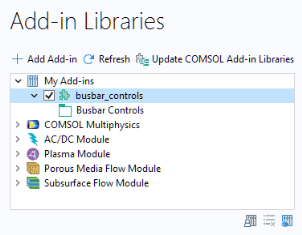
You can browse to a user-defined add-in library by clicking the Add User Add-in Library button at the bottom of the
Add-in Libraries window.
You can also click the Add Add-in button at the top of the Add in Libraries window to browse to a user-defined add-in which will then be copied to a standard location in the COMSOL Multiphysics installation folder (typically at
C:\Users\paul\.comsol\v64\addins or similar).