Ctrl+Space and Tab for Code Completion
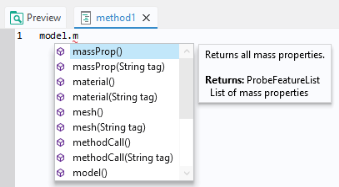
While typing code in the Method Editor, the Application Builder offers suggestions for code completion. A completion list appears as you type, displaying possible options. In certain cases, selecting an entry from the list opens a separate window with detailed information about the selected option. You can also manually trigger code completion at any time using the Ctrl+Space keyboard shortcut. When accessing parts of the model object, a list of available completions is displayed, as shown in the figure below.
Select a completion by using the arrow keys to choose an entry in the list and press the Tab or Enter key to confirm the selection.
If the list is long, you can filter by typing the first few characters of the completion you are looking for.
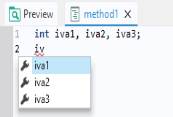
For example, if you enter the first few characters of a variable or method name and press Ctrl+Space, the possible completions are shown:
In the example above, only variables that match the string
iv
are shown. This example shows that variables local to the method also appear in the completion suggestions.
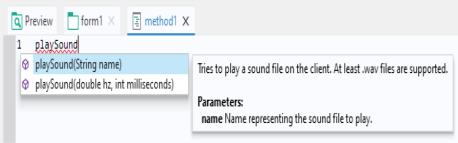
You can also use Ctrl+Space to learn about the syntax for the built-in methods that are not directly related to the model object. Type the name of the command and use Ctrl+Space to open a window with information on the various calling signatures available.
For a list of available built-in methods, you can use the
Language Elements
window described on
Language Elements Window
or see
Appendix E — Built-In Method Library
.
Similar information is displayed in a tooltip when hovering over the different parts of a method call, property name, declaration, or shortcut.
The keyboard shortcut Ctrl+Space can also be used in the Model Builder. For example, when typing in an
Expression
field in
Results
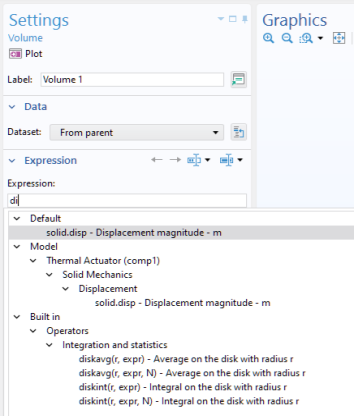
, use Ctrl+Space to see matching variables, as shown in the figure below.