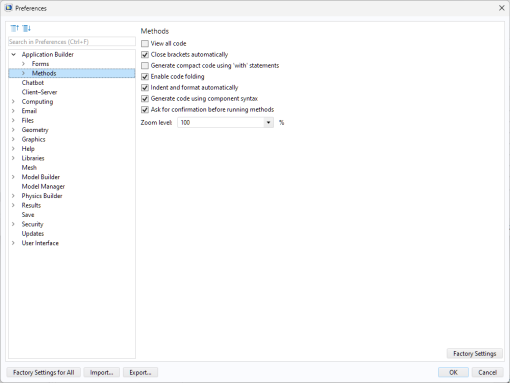
By default, the Method Editor only shows the most relevant code. To see all Java® code in a method, including its object oriented structure and import declarations, select the
View all code checkbox.
The Close brackets automatically checkbox controls whether the Method Editor should automatically add closing brackets, such as curly brackets
{}, brackets
[], and parentheses
().
The Generate compact code using ‘with’ statements checkbox controls the utilization of
with statements in automatically generated code. For more information, see
The With Statement.
If the Enable code folding checkbox is selected, you can expand and collapse parts of the code corresponding to code blocks associated with
for,
while,
if, and
else statements.
Selecting the Indent and format automatically checkbox will ensure that code is consistently indented and formatted.
The Generate code using component syntax option will generate method syntax that also includes the model component scope.
Clear the option Ask for confirmation before running methods in the Model Builder if you do not want to confirm when running methods in this way.
Use the Zoom level setting to increase the font size in the Method Editor.
Under the Syntax highlighting node, the
Theme list contains a few predefined themes. Choose
User defined to define a syntax highlighting mode where the colors can be assigned to individual language elements.