Syntax Highlighting, Code Folding, and Indentation
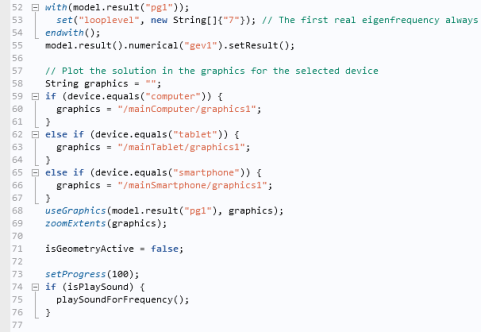
Different language elements in the code are displayed using different styles. Refer to the figure below for an example:
This example includes five styles:
•
Keywords, such as
if
,
else
,
for
,
while
,
double
, and
int
are displayed in bold blue font
•
Built-in methods are displayed in italic blue font
•
Strings are displayed in red font
•
Comments are displayed in green font
•
The remainder of the code is displayed in black font
You can customize the syntax highlighting theme in the
Preferences
window. See the next section
Method Editor Preferences
.
You can expand and collapse parts of the code corresponding to code blocks that are part of
for
,
while
,
if
, and
else
statements. This feature can be disabled, as described in
Method Editor Preferences
.
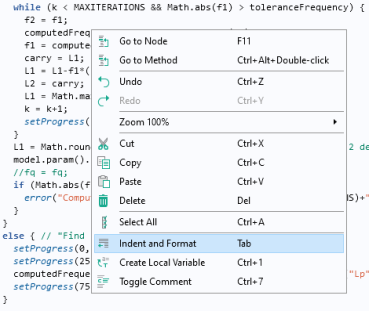
When writing code, use the Tab key on your keyboard to automatically indent a line of code and insert white spaces where needed. As an alternative, you can right-click in the Method Editor and select
Indent and Format
, as shown in the figure below.
Indentation and whitespace formatting also happen automatically when the keyboard focus leaves the Method Editor. You can disable this behavior in
Preferences
in the
Method
section by clearing the
Indent and format automatically
checkbox.
Using the context menu shown above, when right-clicking, you can toggle comments on and off for an entire block of code that you have selected. This is available by selecting
Toggle Comment
from the menu or the keyboard shortcut Ctrl+7.
The Name of a Method
The
Name
of a method is a text string without spaces. The string can contain letters, numbers, and underscores. The reserved names
root
and
parent
are not allowed and Java
®
programming language keywords cannot be used.