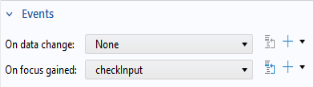
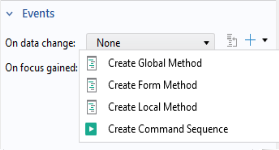
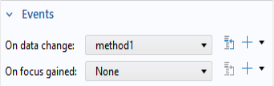
The drop-down list On data change contains
None (the default), any available methods under the
Methods node of the application tree or under the
Methods node of the corresponding form, and a local method or command sequence (optional).
Clicking Create Global Method or
Create Form Method will open a dialog where you can edit the name of the method to be created. Clicking
Create Local Method will create a local method with an automatically created name indicating the form and type of event, see
Local Methods. The method so created has a first argument called
newValue which is based on the form object type. The argument added to the method will contain the new value in the form object when the event is triggered. The newly created method is also selected in the application tree and opened in the editor area.
The Settings window for the method created in this way is shown in the figure below.
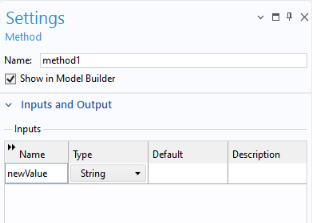
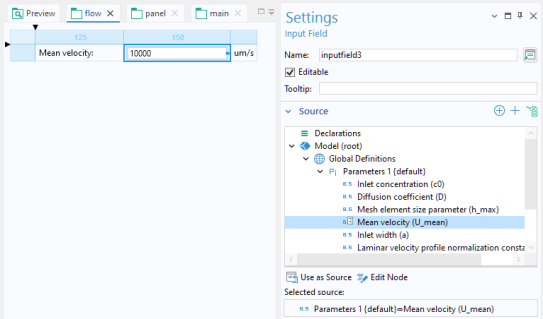
The variable newValue will then contain the new value of the
Mean velocity entered by the user of the app. In a similar way, if the method was created for an event associated with a checkbox, the variable
newValue would be a Boolean variable indicating the new status of the checkbox.
You can specify an On data change event for multiple form objects simultaneously by using Ctrl+click and then selecting the method or command sequence to run. In this way, you can, for example, quickly specify that a data change event initiated by any of the selected form objects should run a method that informs the user that plots and outputs are invalid. This functionality is not available for all combinations of form objects.
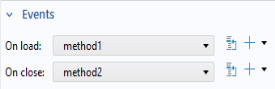
This type of event is available in the Settings window of a form and is typically used when a form is shown as a dialog, or to activate forms used as panes in a form collection. Note that, as described earlier, a method that is used for initializing graphics, such as
Zoom Extents, needs to be run as an
On load event for a form and not as a global
On startup event.
Certain form objects can have an On focus gained event, which is similar to an
On data change event. This type of event is triggered when the user control associated with a form object comes into focus, for example, when clicking an input field. In general, a form object comes into focus when it becomes the target of keyboard input by the action of a mouse click or when cycling focus using the Tab-key.