Using Forms in the Model Builder
Forms without graphics form objects can be used in the Model Builder. You can use this functionality to create customized Settings windows for, for example, common or repetitive tasks.
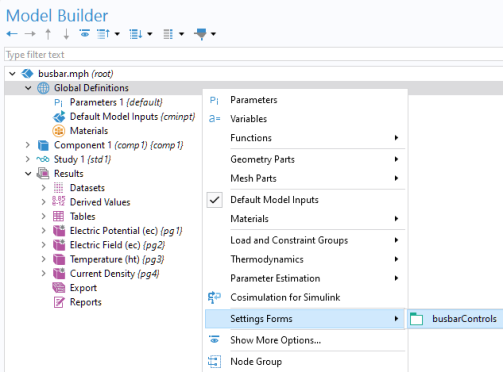
To use a form, right-click Global Definitions and select the form under Settings Forms.
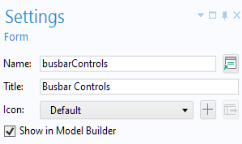
You can control whether a form should be visible or not in the Model Builder as a Settings Form via the Show in Model Builder checkbox. This checkbox is available in the Application Builder in the Settings window of the corresponding form.
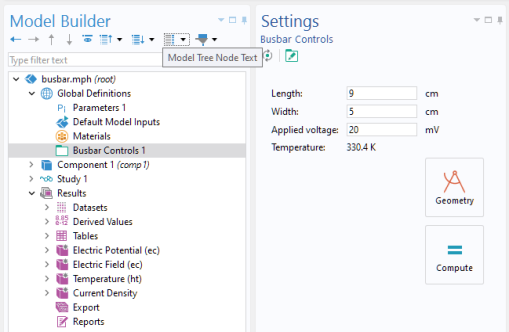
Once added to the model tree, the form is shown as a Settings window, shown in the figure below.
To show a Settings Form you can:
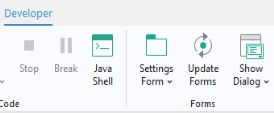
Select it from the Settings Form menu button in the Developer tab in the ribbon.
Show it as a dialog by selecting it from the Show Dialog menu button in the Developer tab in the ribbon.
For reusing a Settings Form between sessions, you can create an Add-in. For more information, see Creating Add-ins.