Editor Tools in the Form Editor
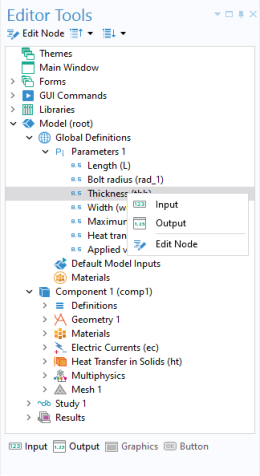
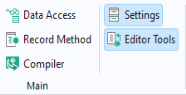
The Editor Tools window is an important complement to the Form Wizard and the Insert Object menu for quickly creating composite form objects. To display the Editor Tools window, click the corresponding button in the Main group in the Home tab.
You can right-click the nodes in the editor tree to add the same set of form objects available with the Form Wizard.
When a node is selected, the toolbar below the editor tree shows the available options for inserting an object. You can also right-click for a list of these options.
Depending on the node, the following options are available:
An Input Field, Checkbox, Combo Box, or File Import object is inserted as follows:
-
Inserts an Input Field using the selected node as Source. It is accompanied by a Text Label and a Unit object, when applicable.
-
Inserts a Checkbox using the selected node as Source.
-
Inserts a Combo Box using the selected node as Source. A choice list is automatically created, corresponding to the list in the node. This option is only available when used with Data Access (see Data Access in the Form Editor) to make the corresponding node available in the editor tree.
-
Inserts a File Import object using the selected node as File Destination.
-
Inserts a Data Display object accompanied by a Text Label when applicable.
-
Inserts a Results Table object when the selected node is a Table.
-
Inserts a Button object with a command sequence running the selected node.
-
Inserts a Graphics object using the selected node as Source for Initial Graphics Content.
-
Brings you to the Settings window for the corresponding model tree node.
The Editor Tools window is also an important tool when working with the Method Editor. In the Method Editor, it is used to generate code associated with the nodes of the editor tree. For more information, see Editor Tools in the Method Editor.