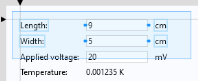
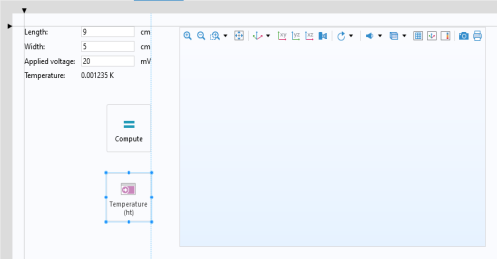
In the figures below, a Plot button is being moved from its original position. Blue guide lines show its alignment relative to the unit objects and the
Compute button.
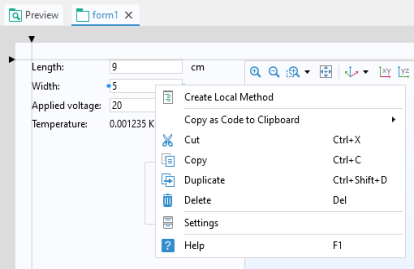
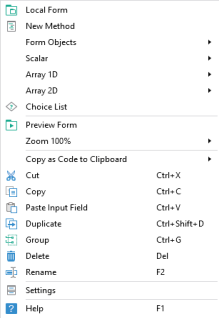
To paste an already copied object, right-click an empty area in the form and right-click again. Depending on the copied object, a Paste menu option will be shown. In the figure below, an
Input Field has previously been copied and as a result, a
Paste Input Field option is shown.
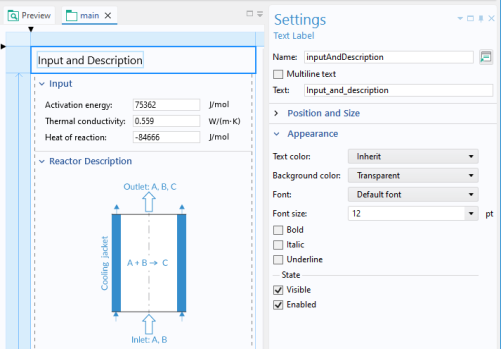
For form objects that display text, the Appearance section in the
Settings window lets you change properties such as the text displayed, font, font color, and font size. For some form objects, such as a button, the size of the object will adapt to the length of the text string.
In the figure below, the Settings window for a text label object is shown.
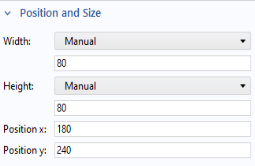
By using grid layout mode (see Sketch and Grid Layout) you can gain further control over the size of form objects, such as setting an arbitrary size for a button.
If you select more than one form object, for example, by using Ctrl+click, then the Settings window will contain a set of properties that can be shared between the selected objects. Shared properties will always originate from the
Appearance section, the
Position and Size section, or the
Events section.
A form object has a Name, which is a text string without spaces. The string can contain letters, numbers, and underscore, but the reserved names
root and
parent are not allowed. The
Name string is used by other form objects and methods to reference the object as part of its path. The object’s path is displayed as a tooltip when hovering over the
Name field in the
Settings window.
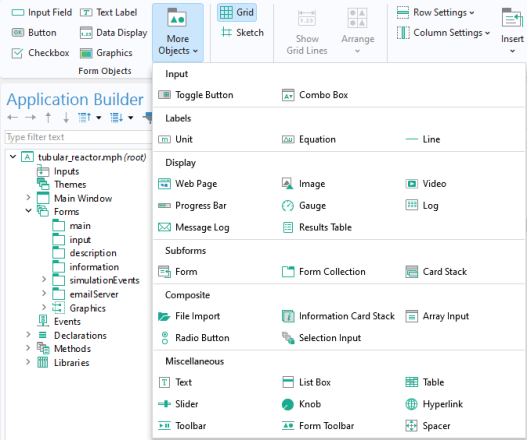
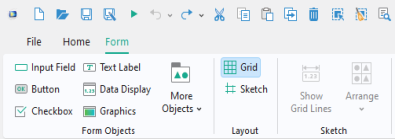
You can insert form objects in addition to those created by the Form Wizard. In the Form ribbon tab, in the
Form Objects section, you can quickly select some of the most common form objects:
Input Field,
Button,
Checkbox,
Text Label,
Data Display, and
Graphics.
The remainder of this section, The Form Editor, only describes the types of form objects that are added by the Form Wizard. The form objects and ribbon features added by using the wizard may include:
However, when using Data Access (see
Data Access in the Form Editor), the additional form objects may be added by the wizard, including: